ok. first is setting up the raspberry pi or the linux control PC.
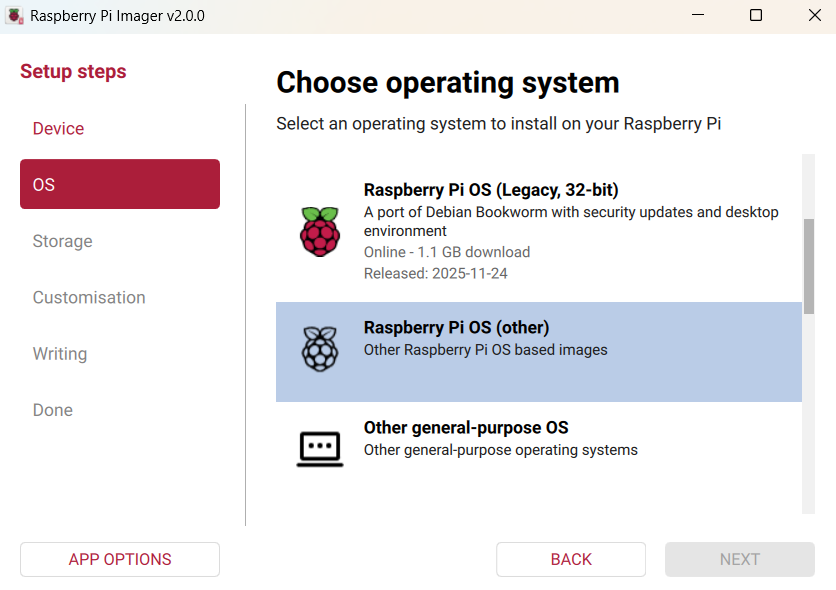
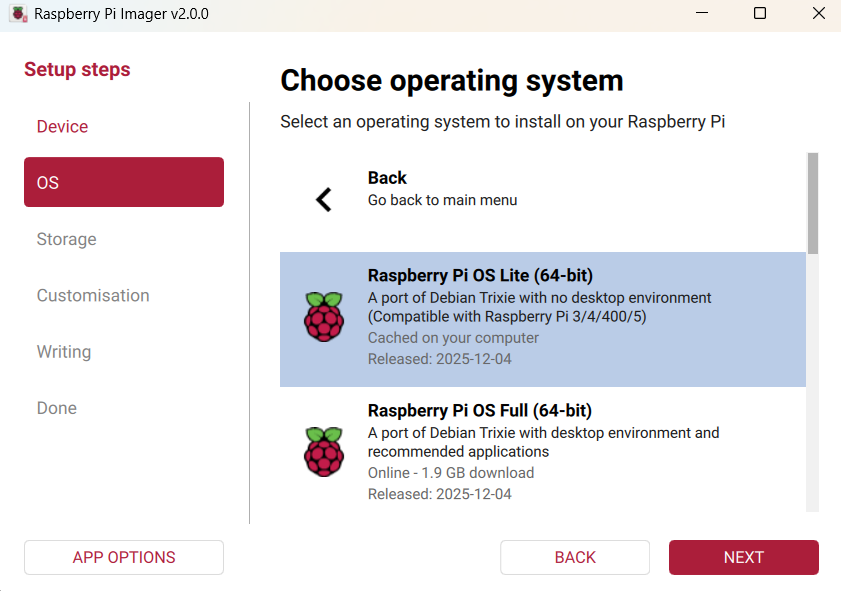
- pull your distro and load it on the sd card.
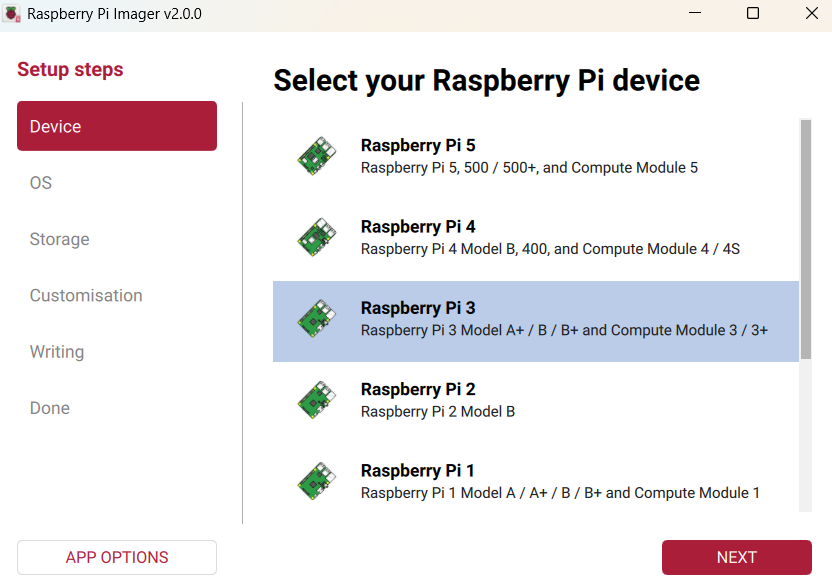
For the pi3, I used raspberry pi imager:
and continue through the setup. Be sure to enable SSH as well as enter your wifi connection information and user name and password, then write it to your sd card. I have a USB to SD card adapter, but my laptop also has an SD card slot that works.
once it is written, you can either hook it up to a tv to continue setting it up or connect to it via a ssh client app such as putty or smartty. I used to use putty for everything, but I like smartty a little better because it has a text editor option and allows scp file transfer with its menu plus you can spawn a new terminal or add a second ssh client connection quickly with a side or lower menu bar option.
- connect to the raspberry pi or linux device via ssh or from the keyboard. it should look something like this, but without all the folders.
update the repositories with
sudo apt update
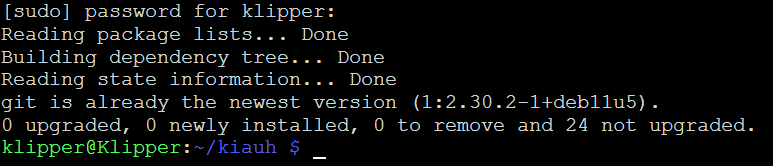
verify you have git installed
sudo apt install git
if it is already installed, it will say something like this. If not it will ask you if you want to install it. press Y
with a git command, clone the kiauh github repository:
git clone GitHub - dw-0/kiauh: Klipper Installation And Update Helper
then move into that folder and run the .sh file
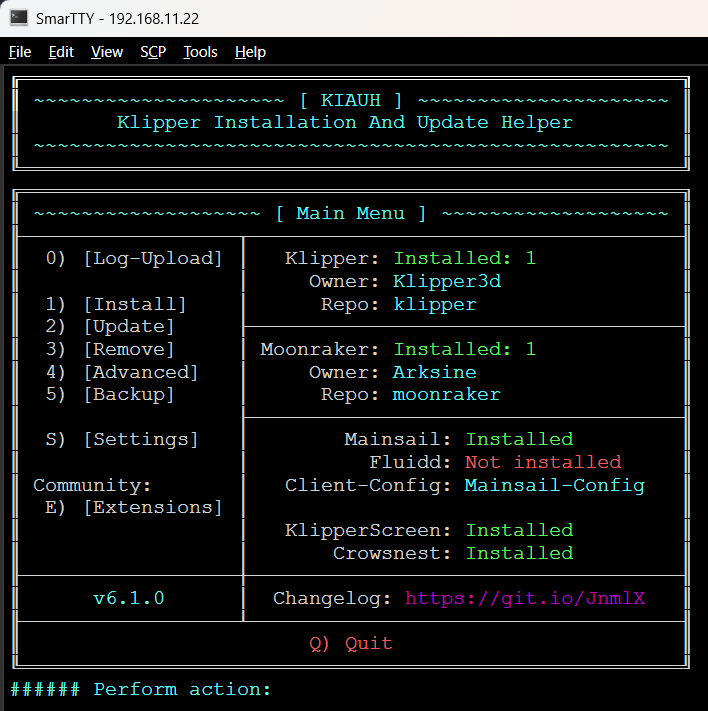
and it will open the kiauh installation menu system:
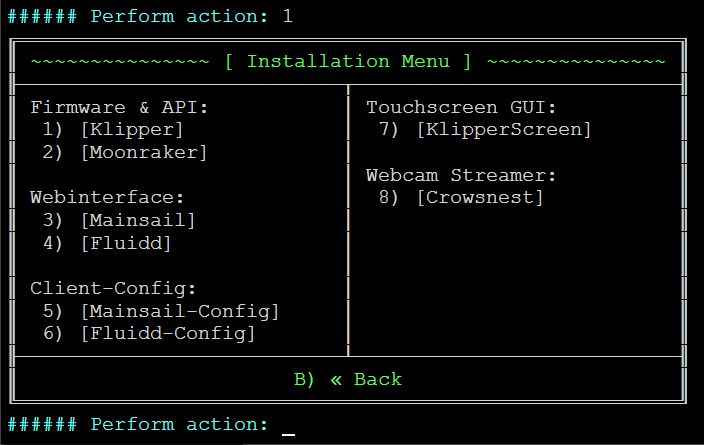
step through the menu by selecting 1
then install 1, 2, 3 and optionally 7 and 8.
Only install 7 if you have a touch screen connected to the raspberry pi. I don’t for my cnc, but you certainly can if you want.
Install 8 if you want to add a camera for remote viewing or timelapse video with the understanding that you should be in the videos it takes, not watching them while it makes them. If you have concerns about that, search fire on this forum.
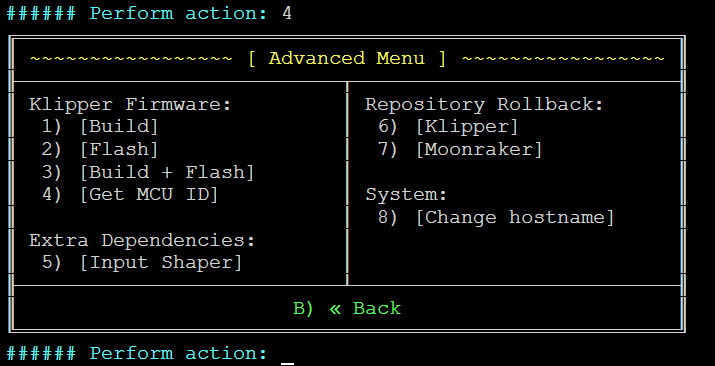
the last thing you need to do in kiauh is make your board firmware. it is an advanced option selected with #4.
if you have a BTT board that flashes with an SD card, you will want to just build. if you have another board like a mega or one that flashes over usb, you can build and flash.
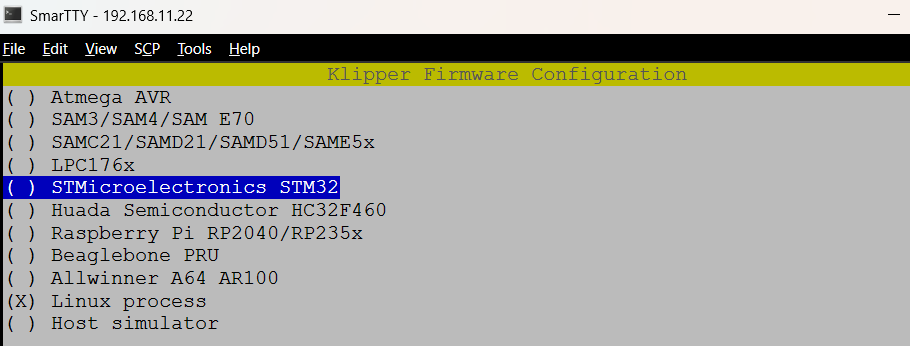
just arrow up/down and press space bar to select…
select microcontroller architecture
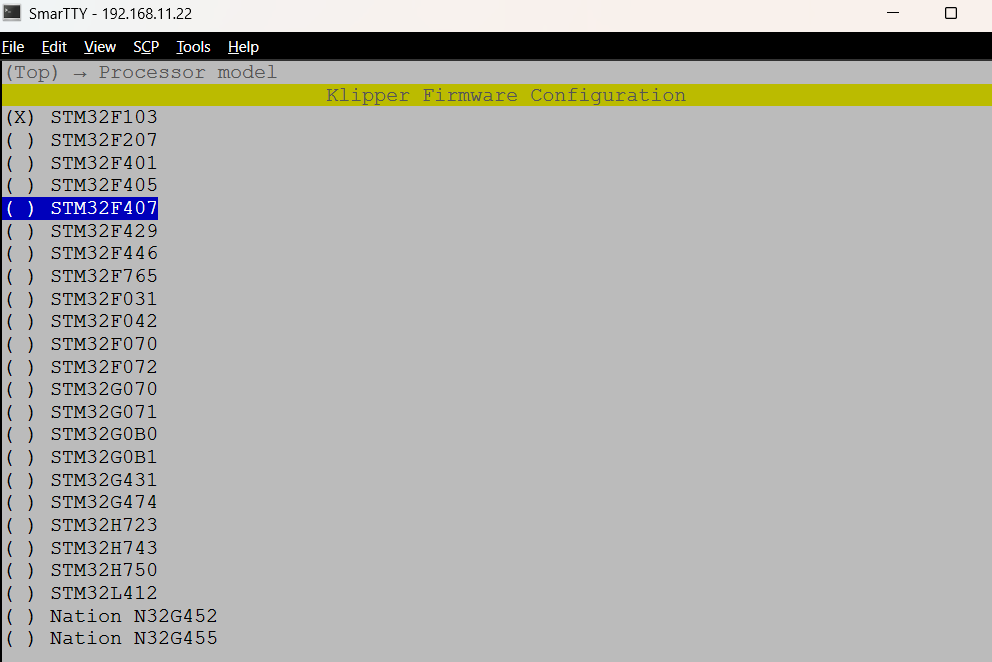
If using a BTT SKR pro 1.2 then select STM32
with a magnifying glass, verify the processor label matches the option (should end in 407):
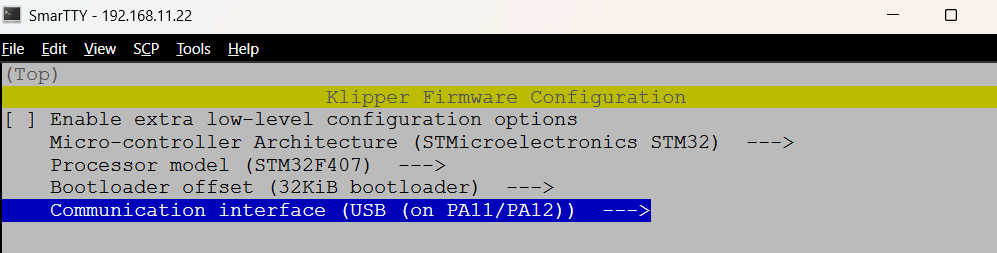
bootloader is 32 and communication interface is usb
you can set the crystal speed to 16 MHz
then press q to back out and it will compile after giving you the option of saving the configuration. Yes and give it a name, or no and it will then start the compile.
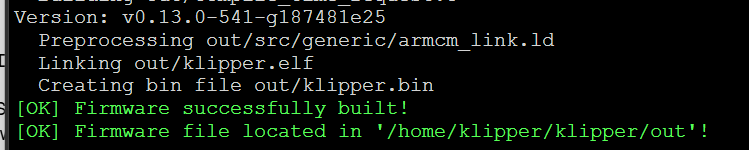
in that compile step, if you don’t see the klipper.bin file name before it says SUCCESSFULLY BUILT! then you need to update klipper and recompile.
The file can be found here…
using smartty, you can scp transfer it back to your host machine, rename it to FIRMWARE.BIN and flash your controller board with it.
lastly:
while still in ssh or terminal communication with the machine, you can install the v1engineering klipper theme made by @Michael_Melancon. See instructions at the bottom of the page here.
- Set up the printer.cfg file
once you have klipper, moonraker, and mainsail installed, you can finish configuring your system via the web page. since you ssh’d into the system you know the system ip address or if you are at the terminal, you can
ifconfig
to get the ip address. Simply enter http:// in front of the ip address in your web browser to open the device web page.
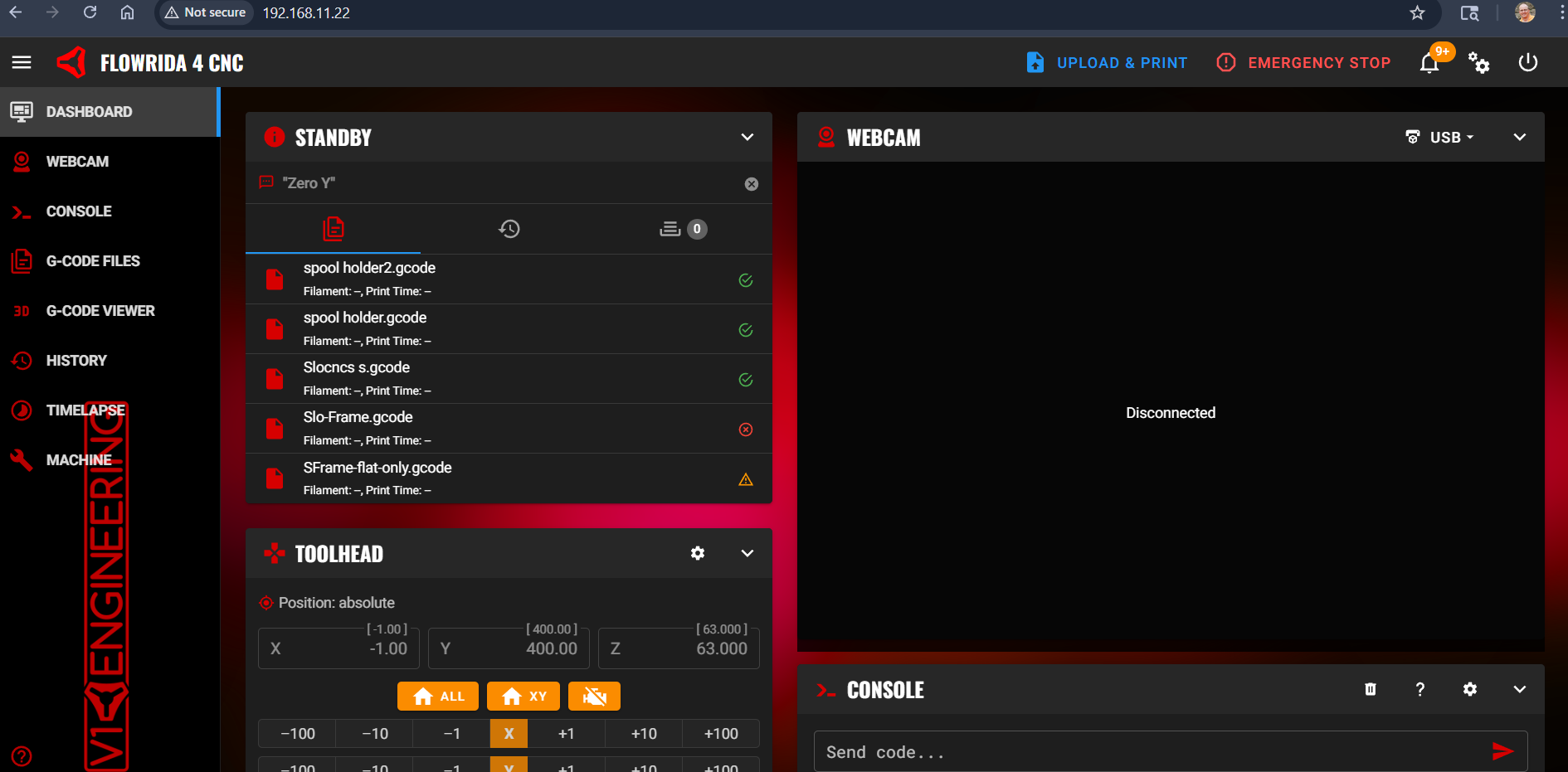
This is my cnc web page. The camera stopped working for some reason, but the device still works.
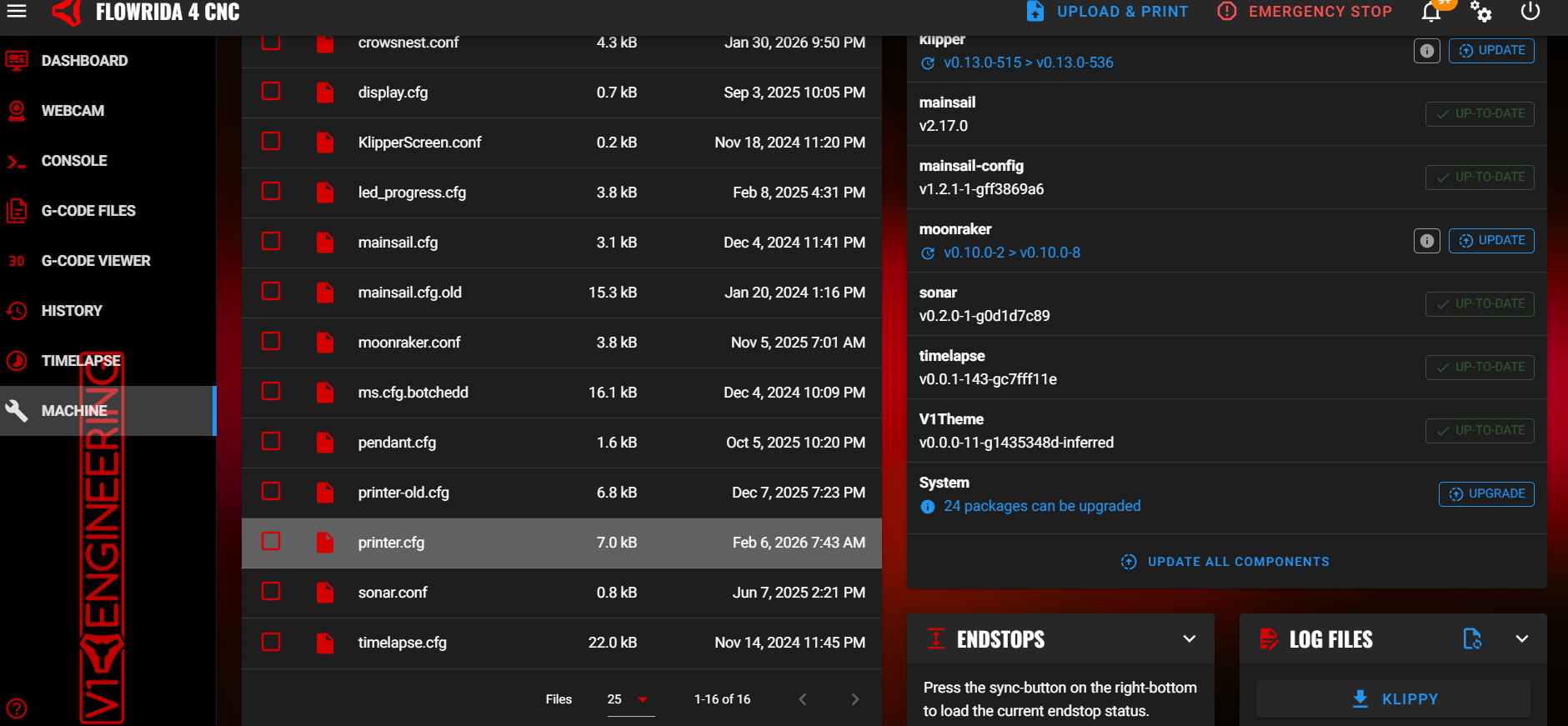
click on machine on the left menu:
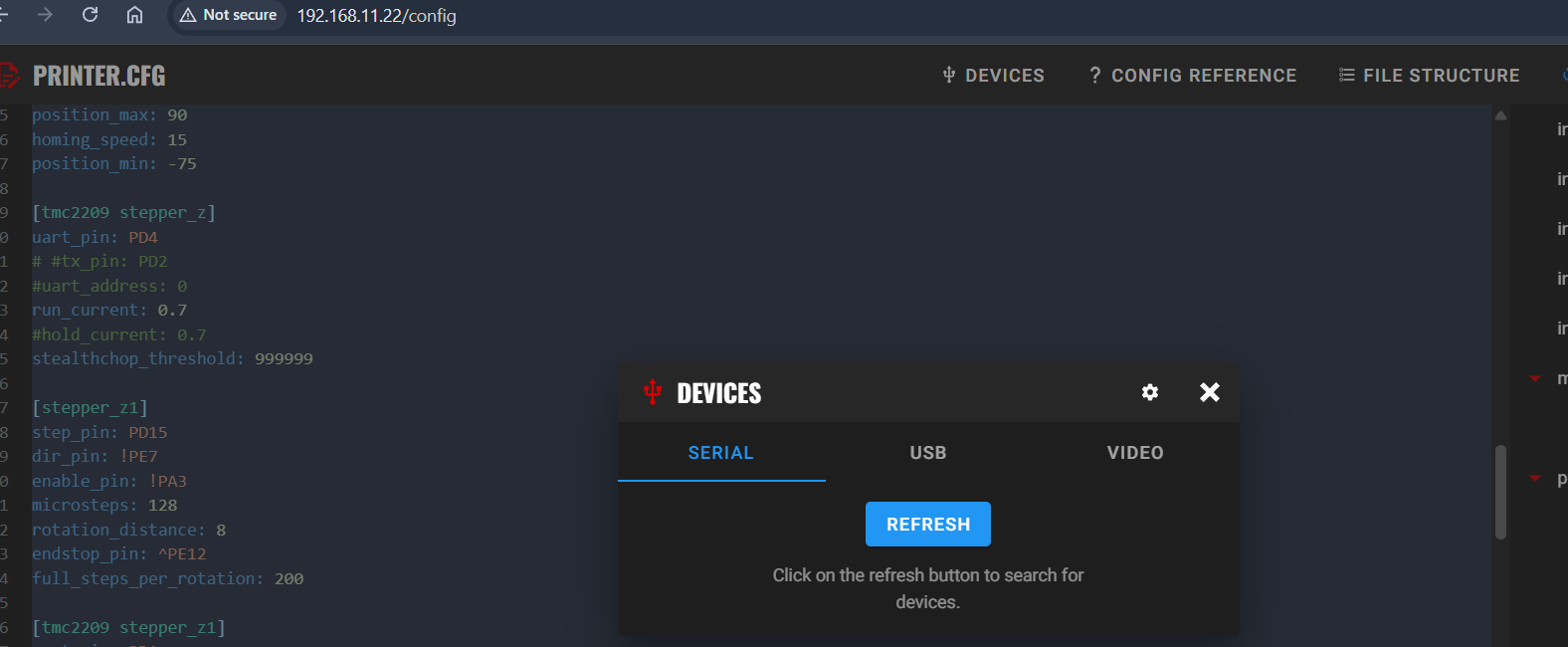
then click on the printer.cfg file. If you device says ERROR, this is ok. It is because your printer.cfg isn’t correct and you don’t even have the USB to your controller plugged in yet. with nothing plugged into the control board, plug it in to the USB with the USB jumpered so it will power on and press the device button at the top of the page:
then hit refresh
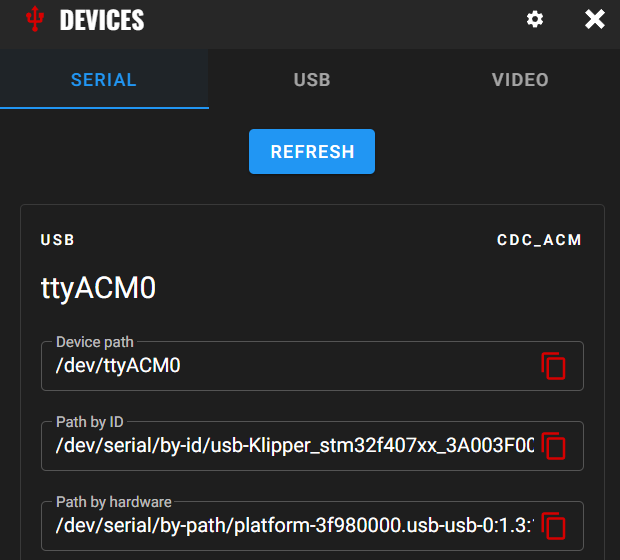
your device should show up. press the copy button to the right of the “by ID” line and paste it into your cfg text in the [MCU] section similar to below but without the ******
[include mainsail.cfg]

[mcu]
#serial: /dev/serial/by-id/usb-Klipper_stm32f407xx_*************************
# paste after the : above with your device ID

[printer]
kinematics: cartesian
max_velocity: 300
max_accel: 150
max_z_velocity: 20
max_z_accel: 150
square_corner_velocity: 1

[gcode_arcs]
resolution: 1

[pause_resume]

[display_status]

[idle_timeout]
timeout: 108000 # timeout in seconds (10800 = 30 hours)

#####################################################################
# X Stepper Settings
#####################################################################

[stepper_x]
homing_positive_dir: False
step_pin: PE9
dir_pin: !PF1
enable_pin: !PF2
microsteps: 128
homing_retract_dist: 10
rotation_distance: 32
full_steps_per_rotation: 200
endstop_pin: ^PE15
position_endstop: -5
position_max: 533
position_min: -200
homing_speed: 50.0

[tmc2209 stepper_x]
uart_pin: PC13
#tx_pin: PE4
uart_address: 0
run_current: 0.900
# hold_current: 0.90
stealthchop_threshold: 999999

#####################################################################
# Y Stepper Settings
#####################################################################

[stepper_y]
homing_positive_dir: False
step_pin: PE11
dir_pin: !PE8
enable_pin: !PD7
microsteps: 128
rotation_distance: 32
full_steps_per_rotation: 200
endstop_pin: ^PE10
position_endstop: -19
position_max: 790
position_min: -300
homing_speed: 70.0

[tmc2209 stepper_y]
uart_pin: PE3
#tx_pin: PE2
run_current: 0.700
# hold_current: 0.70
stealthchop_threshold: 999999

[stepper_y1]
step_pin: PE13
dir_pin: !PC2
enable_pin: !PC0
endstop_pin: ^PG5
microsteps: 128
rotation_distance: 32
full_steps_per_rotation: 200

[tmc2209 stepper_y1]
uart_pin: PE1
#tx_pin: PE0
run_current: 0.700
hold_current: 0.700
stealthchop_threshold: 999999

#####################################################################
# Z Stepper Settings
#####################################################################

[stepper_z]
homing_positive_dir: True
homing_retract_dist: 5
step_pin: PE14
dir_pin: PA0
enable_pin: !PC3
microsteps: 128
rotation_distance: 8
endstop_pin: ^PB10
position_endstop: 63
full_steps_per_rotation: 200
position_max: 90
homing_speed: 15
position_min: -75

[tmc2209 stepper_z]
uart_pin: PD4
# #tx_pin: PD2
#uart_address: 0
run_current: 0.7
#hold_current: 0.7
stealthchop_threshold: 999999

[stepper_z1]
step_pin: PD15
dir_pin: !PE7
enable_pin: !PA3
microsteps: 128
rotation_distance: 8
endstop_pin: ^PE12
full_steps_per_rotation: 200

[tmc2209 stepper_z1]
uart_pin: PD1
# #tx_pin: PD0
#uart_address: 2
run_current: 0.7
#hold_current: 0.7
stealthchop_threshold: 999999

#####################################################################
# Sensors
#####################################################################

[temperature_sensor r_pi]
sensor_type: temperature_host
min_temp: 10
max_temp: 100

[temperature_sensor mcu_temp]
sensor_type: temperature_mcu
min_temp: 0
max_temp: 100

#####################################################################
# Misc
#####################################################################

[force_move]
enable_force_move: True
# required for the zeroing macros to work

[virtual_sdcard]
path: ~/printer_data/gcodes

[probe]
pin: !PG8
x_offset: 0
y_offset: 0
z_offset: 0.5              ; plate thickness in mm
speed: 5                   ; probing speed of 5mm/second ideal is <10mm/sec
samples: 1                 ; number of probes to perform per sample
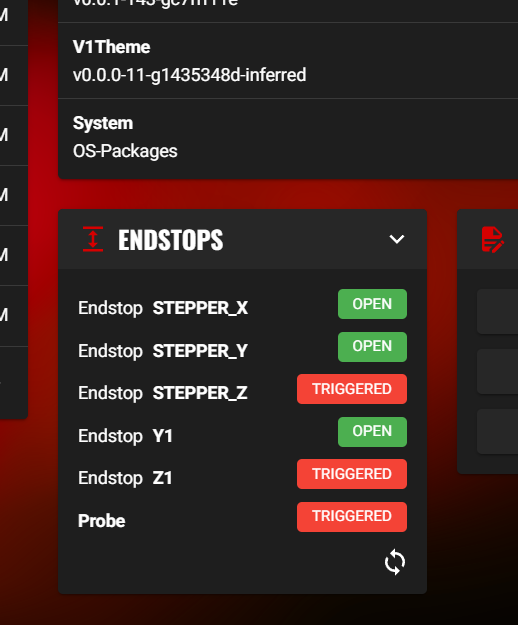
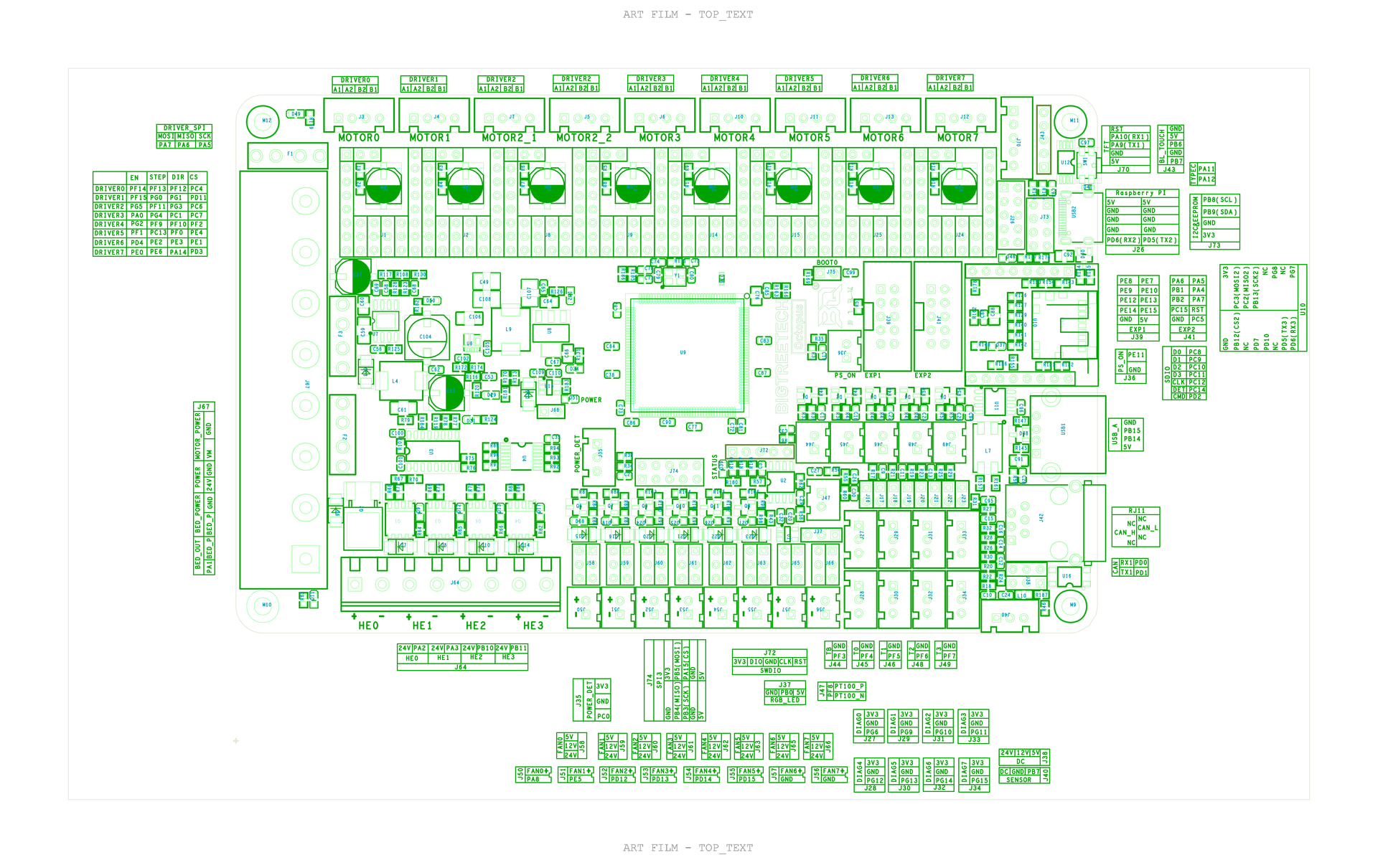
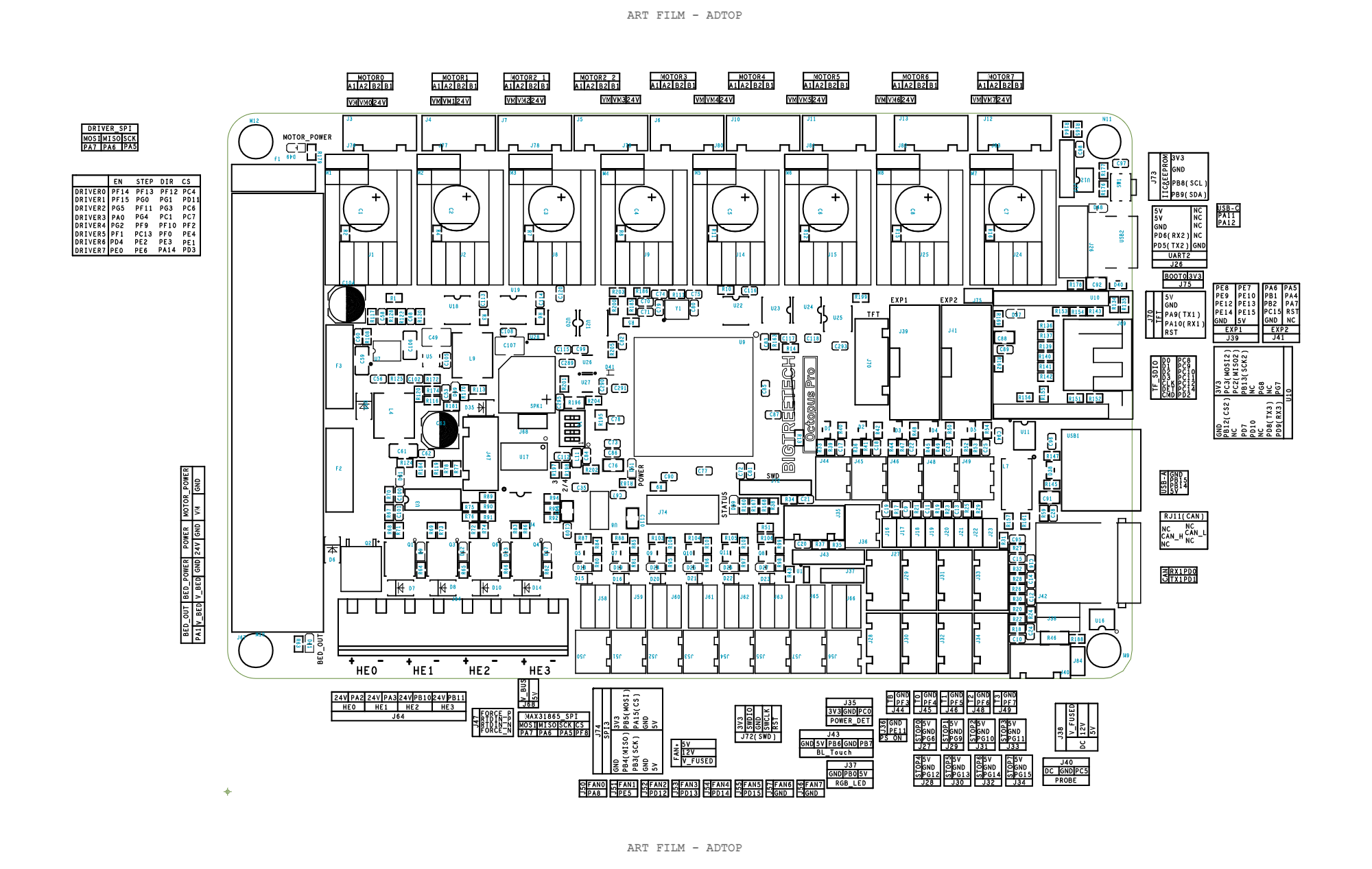
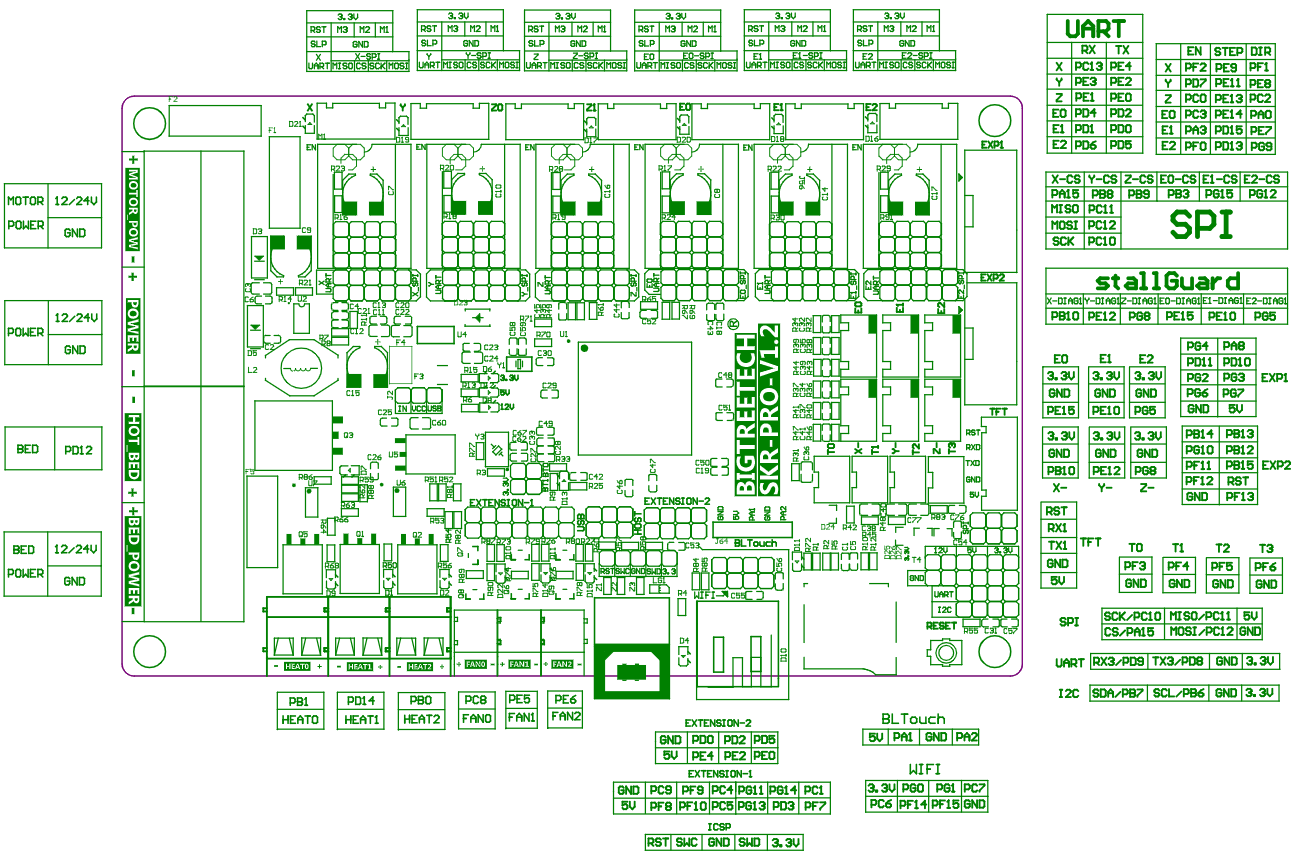
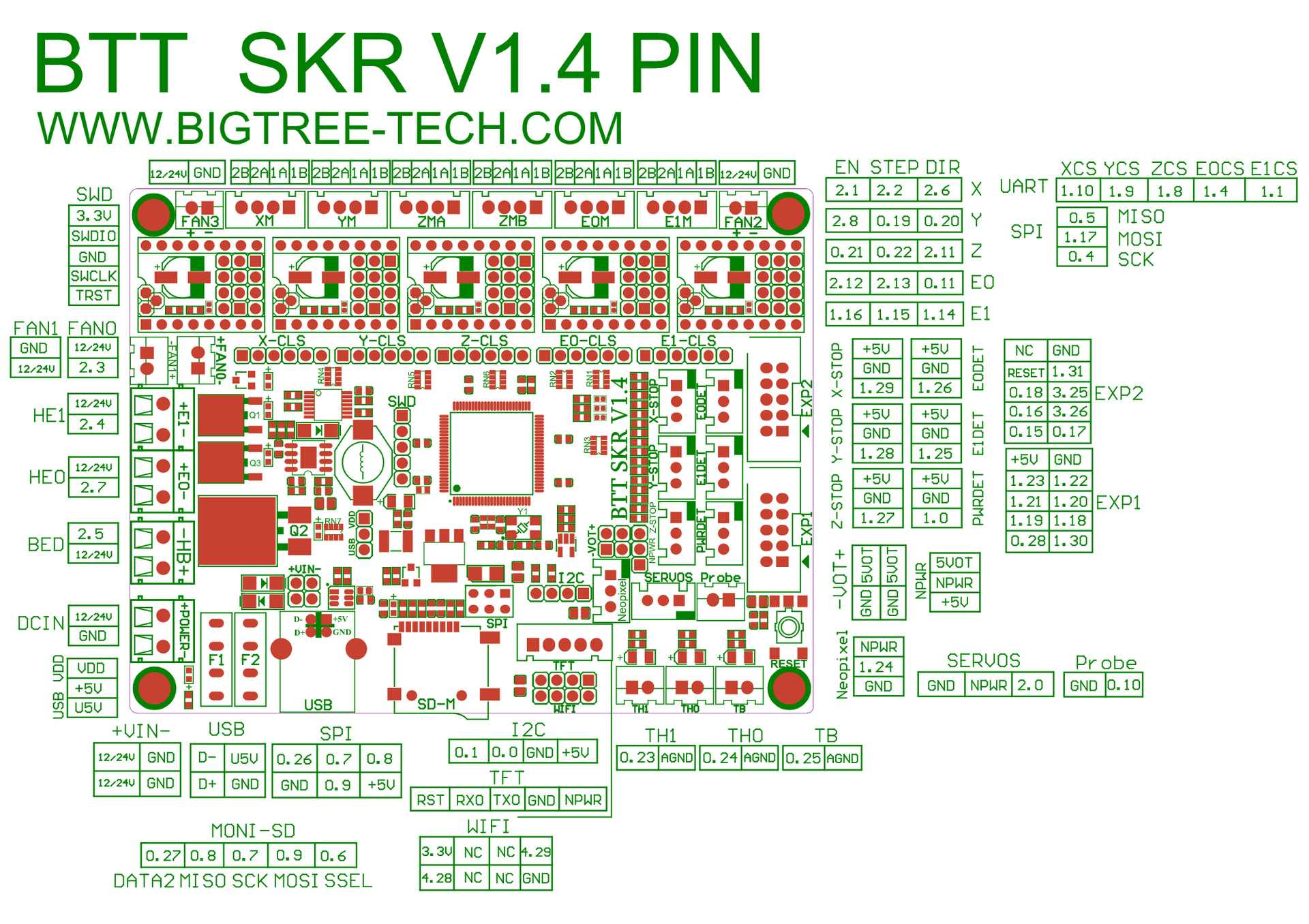
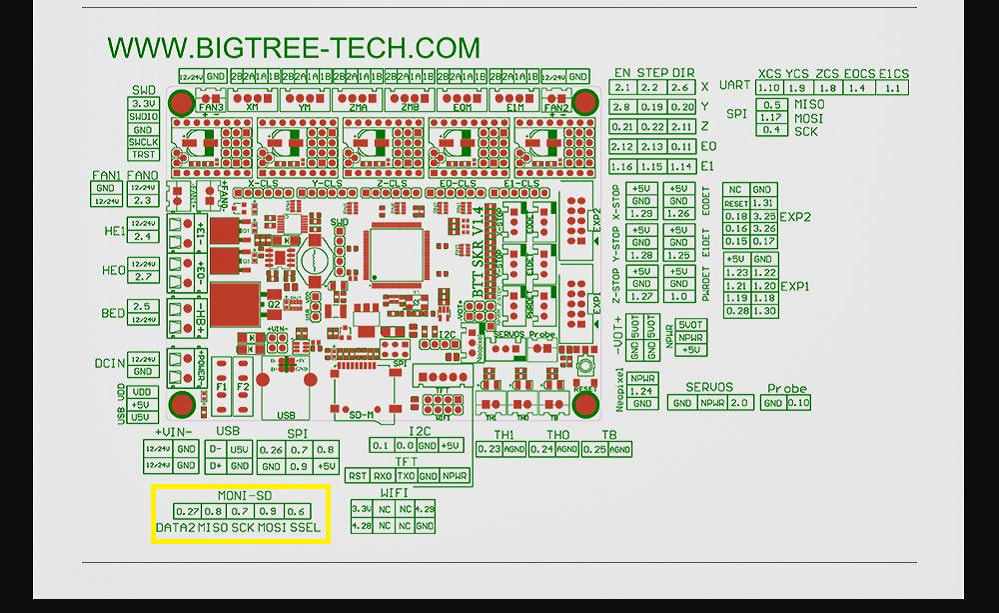
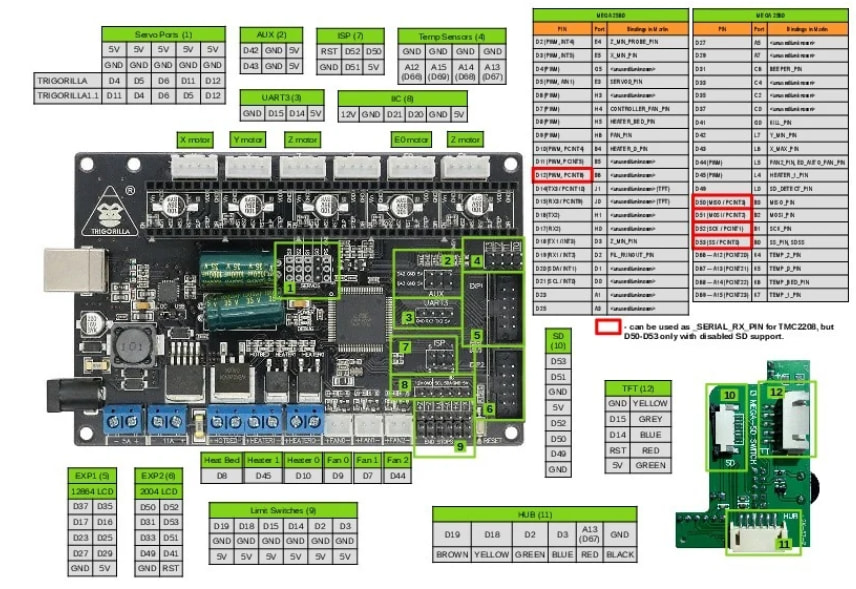
Those are the basic settings. You will need to verify your pins with the pinout board for enstop assignments. You can test the endstops on the web page in the machine section by pressing the refresh arrows
hold them or change them and press refresh to verify they work.
If it reads triggered and it is open, change the pin name to have a ! in front of it or remove the !
If it is the wiring is swapped, you can either change the wires or change the pin assignments and save and restart.
- CNC required macros:
I’ve kind of lost track of the ones that are required. Zero sets the current position to zero. Home runs to the endstops. Probe goes down until it his the plate. Go home goes to the current zero location. I have zero options for x, y, X&Y, z. Most often I use X&Y and use probe for Z zero.
[gcode_macro M0]
gcode:
  {action_respond_info("Initiating Pause from M0 Gcode command")}
  PAUSE

[gcode_macro PAUSE]
rename_existing: BASE_PAUSE
gcode:
    # Parameters
    {% set X = params.X|default(230)|float %}
    {% set Y = params.Y|default(230)|float %}
    {% set Z = params.Z|default(10)|float %}
    {% set F = params.F|default(480)|float %}
    {action_respond_info("Saving state of system")}
    SAVE_GCODE_STATE NAME=PAUSE_state
    BASE_PAUSE

[gcode_macro CONTINUE_CUT]
gcode:
  {action_respond_info("Resuming cut from last position")}
  RESUME

[gcode_macro RESUME]
rename_existing: BASE_RESUME
variable_zhop: 0
variable_etemp: 0
gcode:
    # Parameters
    RESTORE_GCODE_STATE NAME=PAUSE_state MOVE=1
    BASE_RESUME
[gcode_macro GO_HOME]
gcode:
  G90 #Absolute
  G0 Z5
  G0 X0 Y0
[gcode_macro HOME_ALL]
gcode:
  G28 Z
  G91
  G0 Z5
  G90
  G28 XY
  #SET_SKEW XY=1701.8,1700.6875,1200

[gcode_macro  ZERO_ALL]
gcode:
  M117 "Zero All"
  SET_KINEMATIC_POSITION X=0 Y=0 Z=0

[gcode_macro  ZERO_XY]
gcode:
  M117 "Zero XY"
  SET_KINEMATIC_POSITION X=0 Y=0

[gcode_macro  ZERO_X]
gcode:
  M117 "Zero X"
  SET_KINEMATIC_POSITION X=0

[gcode_macro  ZERO_Y]
gcode:
  M117 "Zero Y"
  SET_KINEMATIC_POSITION Y=0

[gcode_macro  SET_Y]
variable_Y_POS = 0
gcode:
  {% set Y_value = params.Y_POS | default(variable_Y_POS) | float %}
  M117 "Zero Y"
  SET_KINEMATIC_POSITION Y={Y_value}

[gcode_macro  ZERO_Z]
gcode:
  M117 "Zero Z"
  SET_KINEMATIC_POSITION Z=0

[gcode_macro PROBE_Z]
gcode:
  M117 "Probing"
  PROBE
  SET_KINEMATIC_POSITION Z=0.5
  G0 Z10

[gcode_macro START_PRINT]
description: called at the start of a run
gcode:
    HYPERLAPSE ACTION=START # for timelapse based on time, not layer like printing
    SET_FAN_SPEED FAN=tmc_fan SPEED=1 # if you have a fan for motor drivers

[gcode_macro START_JOB]
description: cnc is not a print, it is a job, but klipper is for printing
gcode:
    START_PRINT

[gcode_macro END_PRINT]
description: called at the end of a run
gcode:
    TIMELAPSE_TAKE_FRAME
    HYPERLAPSE ACTION=STOP


[gcode_macro END_JOB]
description: called at the end of a run but it isn't a print
gcode:
    END_PRINT
-
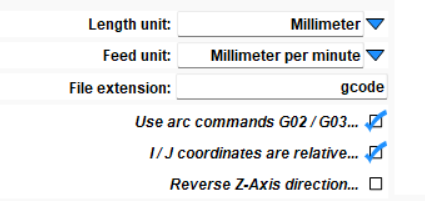
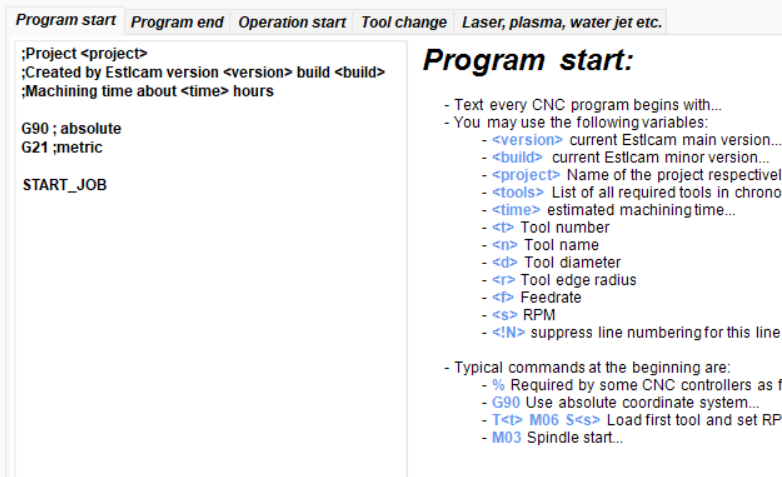
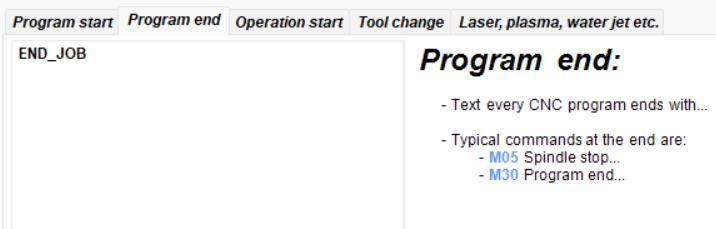
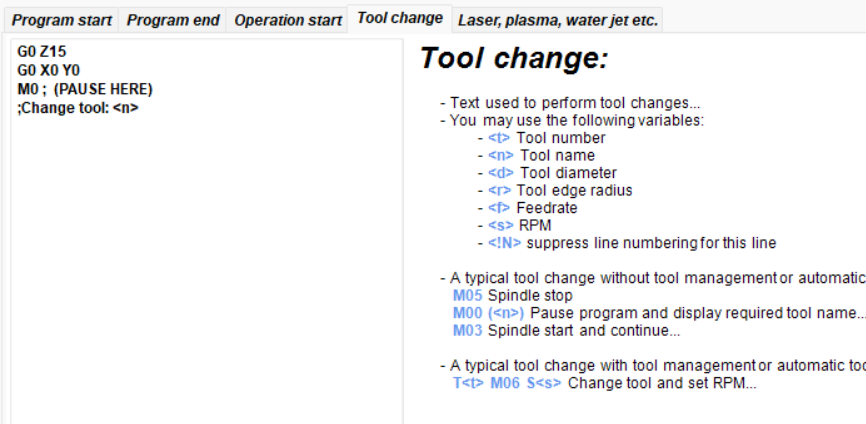
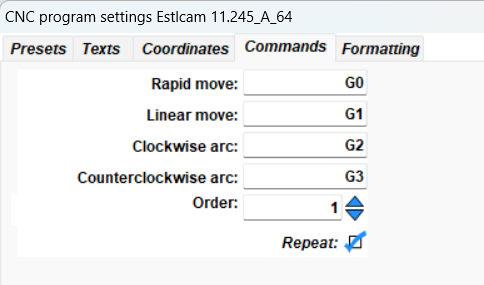
Estlcam postprocessor
Klipper gcode is most closely related to Marlin. I here are my settings for Estlcam 11:
-
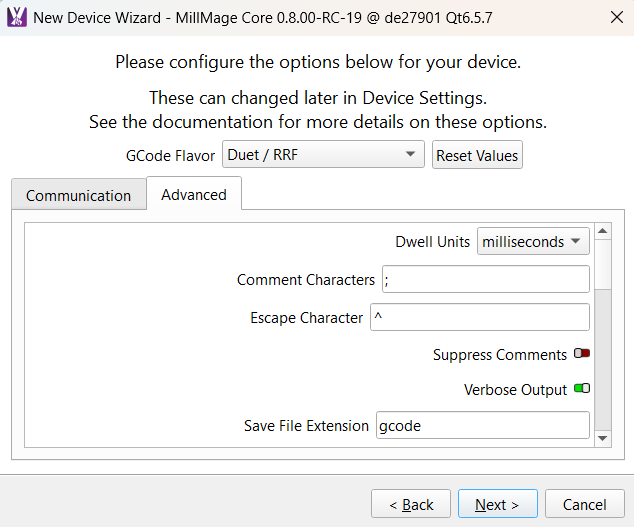
Millmage setup:
save gcode file and transfer via web gcode file. I just looked and it may have option to control, but I have not tested that yet via millmage RC14. Uploading files for me has worked ok. I’ve milled aluminum with it and it survived.
so that is the basic setup. Some details are not fully explained. Feedback and questions are encouraged. I hope this is useful. I can add info on how to pull data from klipper remotely over the web if desired. I have a wireless pendant for it, but find I most often use the local all-in-one pc nearby because a full featured web page with a wireless mouse is pretty easy to use.
Disclaimer on the macros… they could really be cleaned up, but so far it has worked, so I was going for function over perfection and running a bit fast and loose. I would appreciate any suggestions on how to clean them up if that is your thing.