I’ve found ‘caveman’ makes it sound less intelligent while still providing technically correct information. It helps to remind you it’s a dumb robot by literally sounding dumber.
Every now and then I tell it it’s actually the Swedish chef from the muppets if I want it to sound less serious  A few months back I heard about “claude in claude” where people found you can have claude create customized chatbots. So I gave it a try with the very simple prompt “create a chatbot that talks like the swedish chef but is an expert at digital marketing and advertising”
And it built the whole thing off that one prompt as an artifact in the web interface.
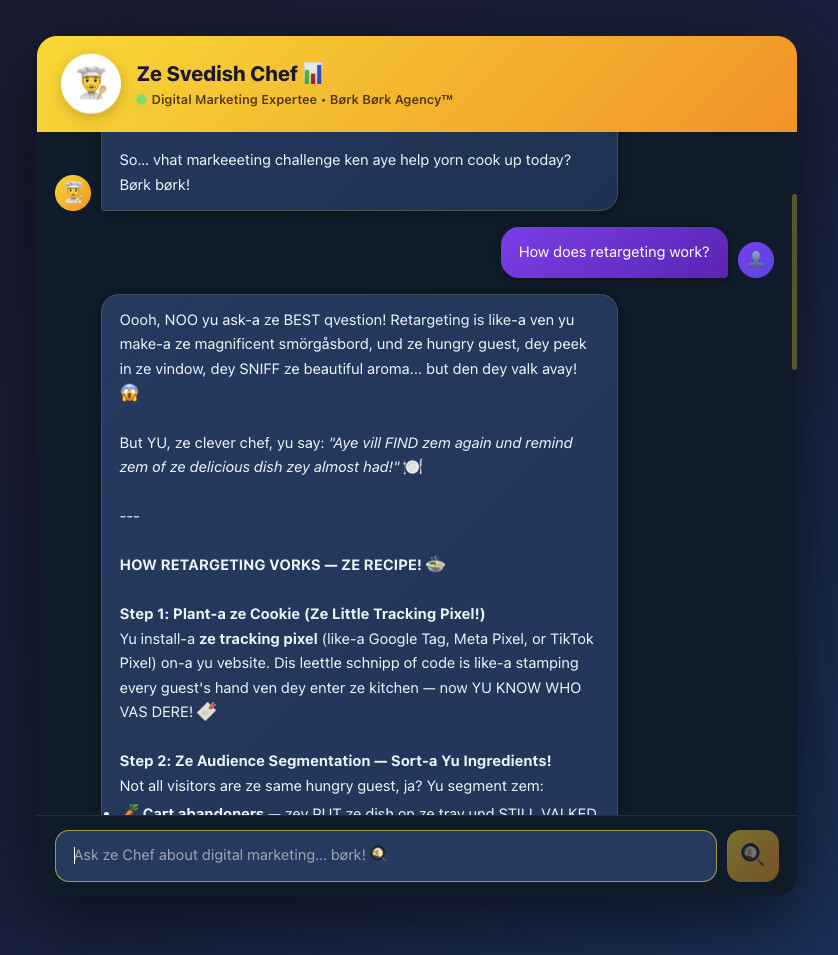
it’s a full interactive chat bot customized with digital marketing knowledge…but talks like the Swedish chef and uses a cooking analogy for things.
It may not be very helpful - but it gives me a good chuckle every now and then
@dkj4linux Glad to hear you had such good success with it! The supervisor comparison is a good one. Doing coding work I get to focus more on the big picture letting Claude do most of the actual code - while I focus on reviewing it’s output, planning the project, and overseeing things.
I just went ahead and tried enabling the MCP in Fusion and it was a really quick and easy process (one checkbox in fusion and there’s a pre-built connector in claude for it) I just gave it the half finished case for my MidiBox Sequencer I started about 4 years ago and never finished…will be interesting to see how it does at finishing it.
Well, it took claude a few tries but it did something fairly close to what I was hoping for:
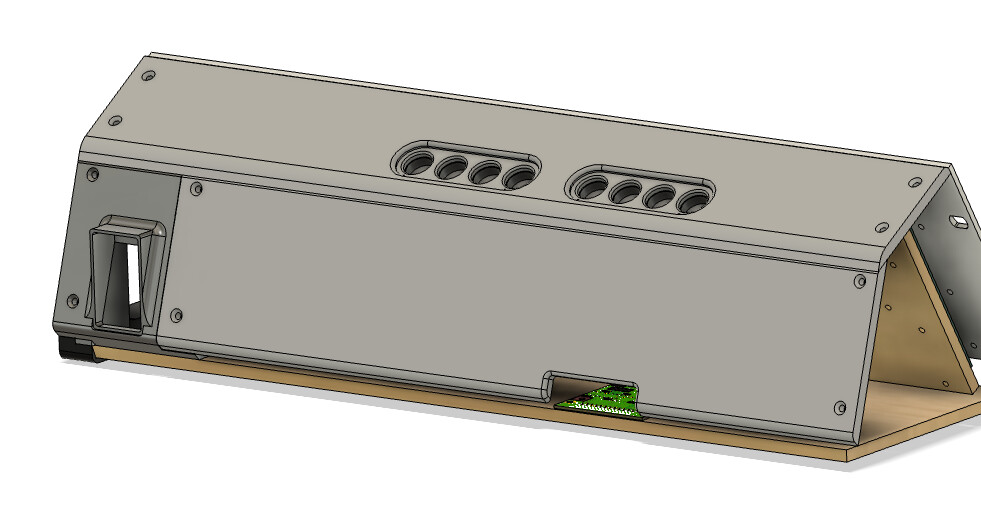
The first try was “functional” but ugly as heck as it just popped some slabs on there…the screw holes and connector openings were in the right spots but that was about it.
The biggest issue was that 3d Printed piece that holds the power inlet - Claude went with 6mm ply for the top and back panels but my original design for the power connector was assuming 1/8" PVC sheet. I did want to do wood but at the time I wasn’t able to use my MPCNC so I didn’t want to do anything too fancy. Still not entirely happy wiht how it joined the top and back. But sure looks like if I put some actual effort into describing what I want that it would do it.
I’m going to ask it to do a case itself next just to see waht it comes up with.
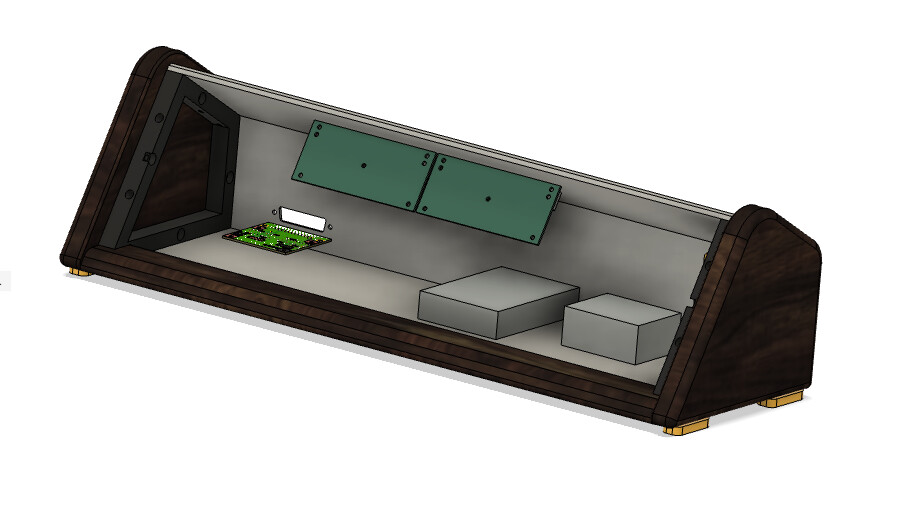
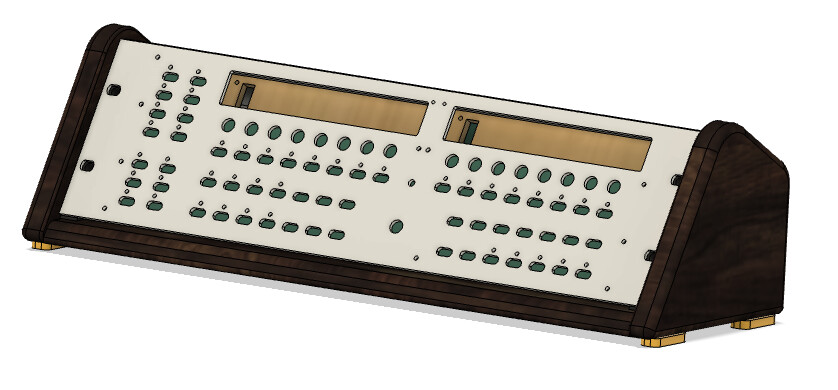
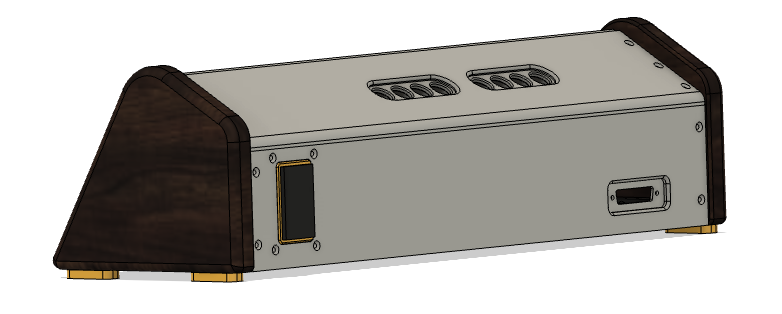
Ok, I definitely love the Fusion MCP.
It did all 3 design ideas it suggested really quickly like 3-5 minutes each. And it cleaned up my own design file and organized things into components for me.
Then I had it do some fine tuning to one of it’s options and really kind of like what it came up with:
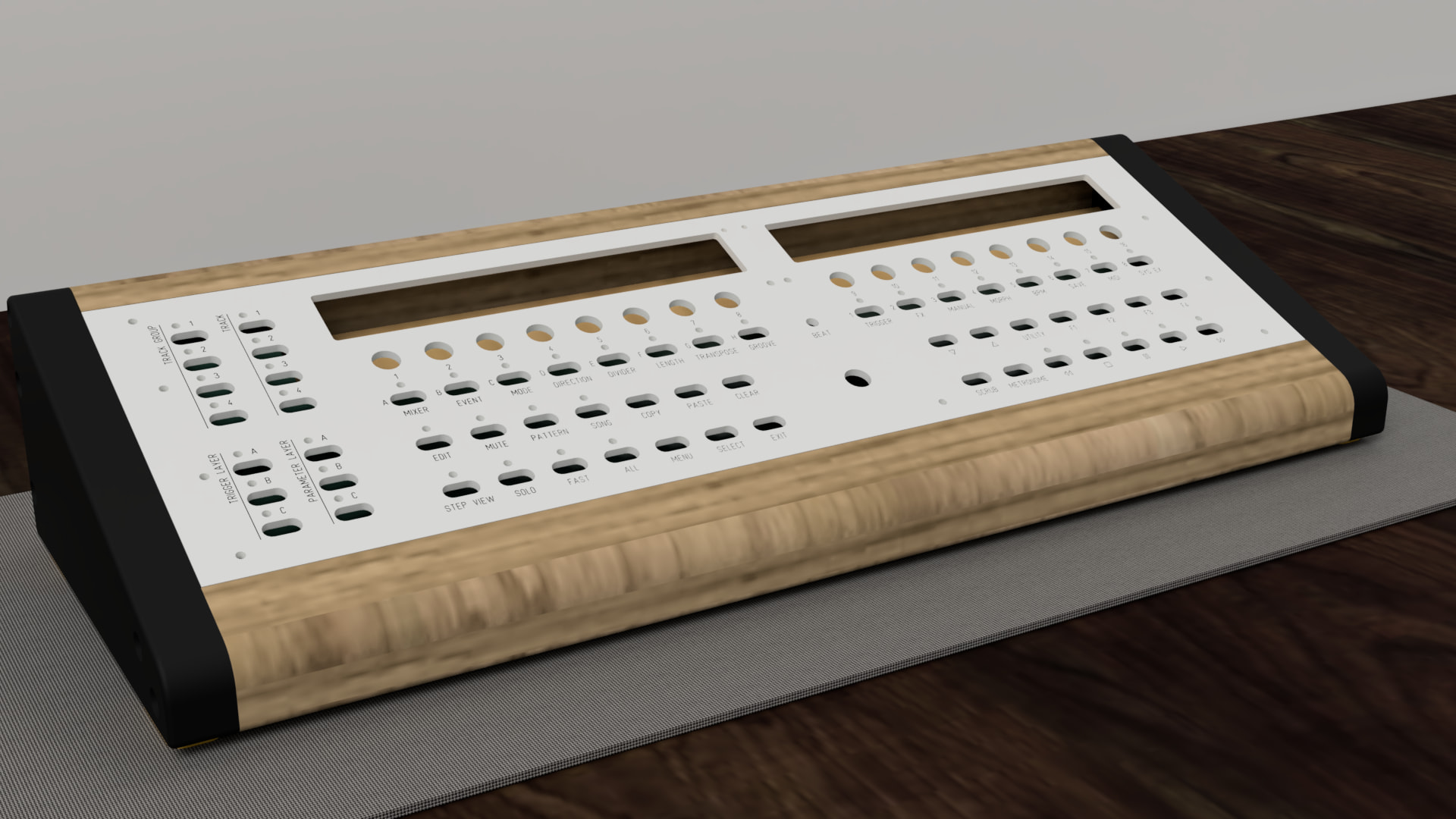
It even added the engraving on the panel.
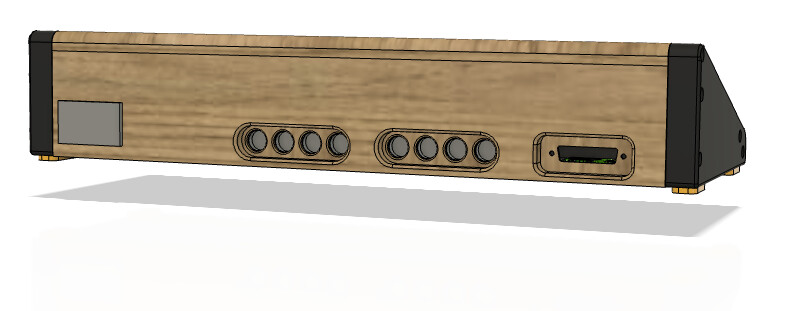
Back came out nice too…in that rendered view it even created a tabletop environment for the rendering.
Really like how well it does at the things I don’t do well myself…and it’s still all Fusion so I can still do things manually when it doesn’t do quite what I want. But most of what I asked it to do it did WAY faster than I could do manually - even things I know how to do it did them faster than I could trigger the tools doing it manually.
Hi @jhitesma , could you share the steps to set up claude in a sandbox like this please - I’ve asked google AI which summarised it as:
- Why it is safe: Running Claude inside a VS Code Dev Container creates an isolated Linux sandbox. Giving Claude the
--dangerously-skip-permissionsflag here is perfectly safe because if it runs a destructive command, it can only damage the temporary virtual sandbox, leaving your physical Windows system completely untouched. - The UI Hybrid Trick: Starting Claude Code inside the sandbox terminal via
/remote-controlallows you to link it to your Claude Desktop App on Windows. This gives you the secure execution of a sandbox combined with the desktop app’s cleaner layout and drag-and-drop image features. - Prerequisites: Install Docker Desktop (with the WSL 2 backend enabled), Visual Studio Code, and the Claude Desktop App natively on your Windows machine.
- VS Code Setup: Install Microsoft’s Dev Containers extension inside VS Code.
- Container configuration: Create an empty folder named
claude-sandboxwith a subfolder named.devcontainer. Inside it, place adevcontainer.jsonfile configured to build a Node.js image, enable Docker-in-Docker, and automatically run thenpm install -g @anthropic-ai/claude-code && pip install freecad-mcpcommands. - Booting the sandbox: Use the VS Code Command Palette (
Ctrl+Shift+P) and choose Dev Containers: Reopen in Container to build and step inside your secure environment. - FreeCAD host prep: Install the
FreeCADMCPaddon folder into your Windows FreeCAD directory (AppData\Roaming\FreeCAD\Mod\), launch FreeCAD natively on your desktop, and click Start RPC Server to open communication on port9876. - Connecting the MCP bridge: Inside your VS Code sandbox terminal, link Claude to FreeCAD using Docker’s host loopback shortcut:
claude mcp add freecad -- python -m freecad_mcp.server --host host.docker.internal. - Launching the workflow: Run
claude --dangerously-skip-permissionsin the sandbox terminal, type/remote-control, and open your Claude Desktop App on Windows to approve the link and start designing safely.
Cheers
James
Claude has documentation on it here: Development containers - Claude Code Docs
One note - it’s safer but not always 100% safer. For example - the default setup Anthropic documents includes a firewall that gives a lot of extra protection…but it also handcuffs claude by preventing it from being able to do research and find 3rd party sources for things. So i often disable it but that does raise the risk of a prompt injection attack. And I usually have a git repo for each project - which potentially a prompt injection could cause claude to do things i don’t want it to do to my git repo, including pushing thigns I didn’t approve to github or bitbucket if the repo is hosted there.
So - sandboxing does give you safety - but you usually wind up having to poke some holes in that safety to get some types of functionality so you still have to be careful and be aware of the risk you’re taking.
And to be honest - I mostly let claude set it up for me in new projects once I had it setup the way I wanted.
But your google summary is pretty good and I’m not sure I could do much better.
And to be honest - for doing CAD work it’s probably not all that necessary. For the Fusion 360 tests I did yesterday I just used the desktop claude app and even with ‘manual’ permissions there were very few times I had to give it any approval so --dangerously-skip-permissions doesn’t add much to that particular workflow.
Now - if you were doing CAD work that required letting claude researching things extensively on 3rd party sites there would be more approvals. Like in my test I did at one point tell it there was a “STM32 Discovery board” that it needed to leave clearace from and I gave it a URL to the specs - it did have to ask me permission before opening that. With --dangerously-skip-permissions it wouldn’t have had to ask for that permission.
The big risk is when you do things like let claude loose on your filesystem. That’s where the horror stories come from of someone asking it to cleanup their vacation photos and it accidentally deletes them all. Or givign it access to a production server and it deletes data.
For the FreeCAD MCP keeping good backups of your work is probably enough safety for most uses. If you try to ask it to do something like organize your work files on your drive - that’s when it would get riskier. But just asking it to do things in CAD the chances of it wanting to erase your whole drive should be minimal.