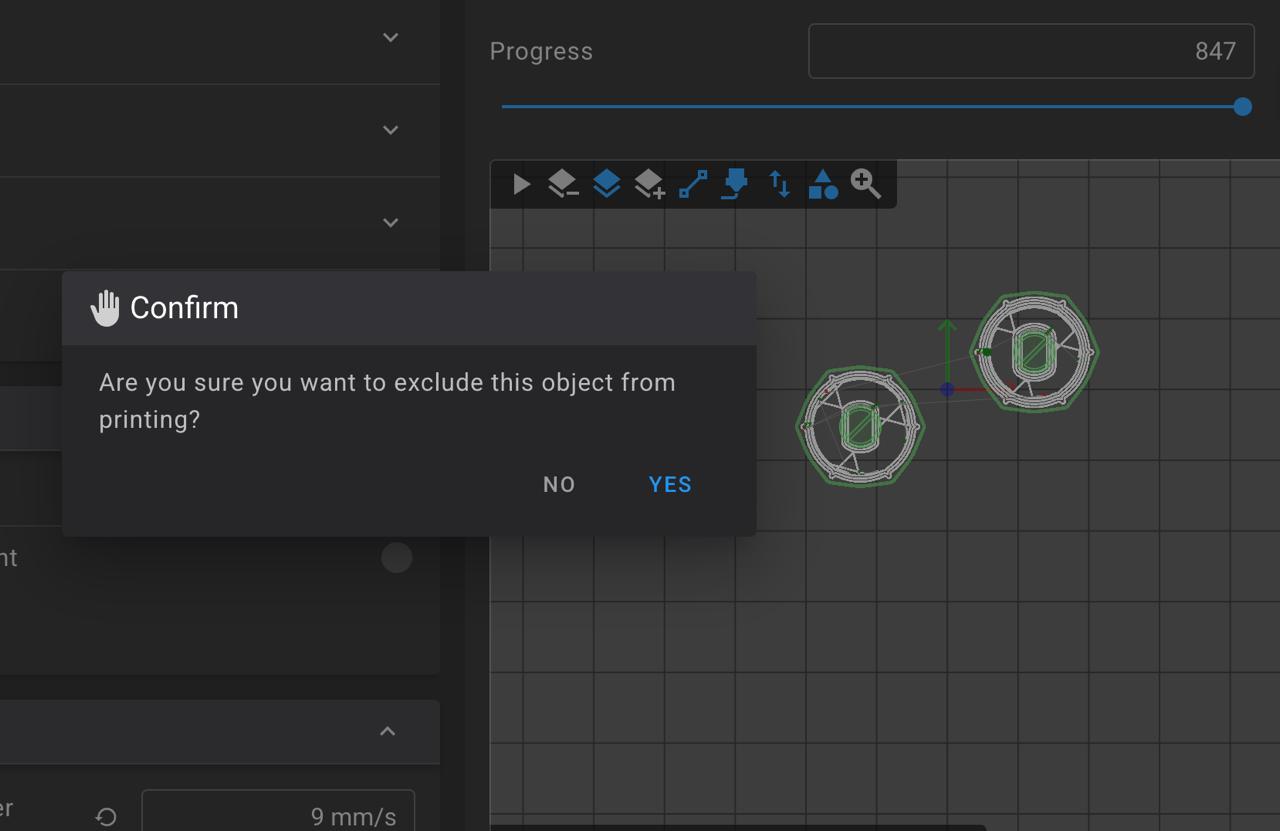
UPDATE re. the above post: I just found out from Alexander (the Forge-X mod’s developer) that in Fluidd there is a separate GUI approach to excluding objects from the print job: “In Fluidd, you can exclude parts from the print by double-clicking them in the G-Code preview” — very good to know! Learn something new all the time.
1 Like
Also, this feature (exclude objects from a print job) is not specific to the Forge-X firmware mod. I was simply testing for whether this known good feature was indeed still functional within the mod’s included Fluidd and Mainsail instances.
1 Like
Quick video of the Star Wars music being played on AD5M - see video description for how to have it play on print start / end:

2 Likes
Mine used to play the animaniacs theme.
2 Likes
@CesarH, have you switched to Forge-X. I did and I like it. It’s great being able to do updates OTH. I also like using KAMP to probe the bed where it is going to print before each print.
So far, so good!
2 Likes
I’m still holding off to see a few more positive user experiences before I move my A5M over.
2 Likes
For several months I used Forge-X on only one of my three units, but about the time I made the install video I went ahead and switched all of them over to it, and I recently also switched them to the guppyscreen variant that Alexander made available —and he just recently put out an updated version of it that has a nice “load material” dialog box that I tried and it worked great.
2 Likes
Later this week will do. Im waiting for my turtle box afc+box to come, so i will need to migrate to a full klipper build anyway
1 Like
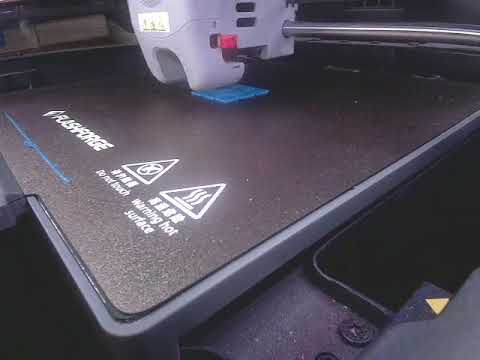
Re. Forge-X Time Lapse via Telegram Bot —hosted on a “server” on my laptop that is running inside a Linux virtual machine (VM)
While I am not an expert in either Linux or networking or Telegram… today I succeeded in getting a Telegram Bot created, and in getting a Linux virtual machine created (on my Mac laptop), and in getting the Telegram Bot server software installed to it, and… I just got my first successful time lapse video from a test print! I will probably try to make a video on it. At first I attempted the “Automatic Setup” shown in the docs, but it failed, and the mod author, Alex, said he will work to fix it later, but for now he suggested I do the “Manual Setup” instead, which I did. Dudes, and dude-ettes, I just got a test print time lapse! SO COOL!
3 Likes
Where did you see the GuppyScreen variant at? I still read it’s in the works.
Visit the Github repot for the Forge-X mod, and click to the releases page. In the releases starting with 1.3.4, the Guppy screen option is in the assets for the release. You simply put it on a USB drive, and boot the printer with that thumb drive inserted. You won’t lose any existing calibrations of your existing Forge-X installation.
1 Like
I’m thinking of trying Forge-X this weekend.
What are the pro/con of Guppy screen vs the other build?
The Forge-X options for the screen are — and this is sorted by least RAM used up to max RAM used:
- Headless (touch screen not used - use only either Fluidd or Mainsail on a remote computer or device)
- Feather screen (very light weight on RAM, almost as good as headless, but only displays pertinent info, and does not accept input)
- Guppy screen (light weight on RAM, not as good as Feather, but it adds accepting input, and you can do things with it.
- Stock UI (hogs RAM, is nice, but has some issues with playing nice with your remote UI’s)
Another screen option that is not offered by Forge-X is Klipper screen. It’s also a RAM hog, and Alexander, who is a professional coder in real life, says it’s code is an old approach that’s not intended for this kind of use and he does not think it’s worth trying to support.
The last two mentioned, Stock UI and Klipperscreen are both RAM hogs, and are close to each other in RAM usage.
1 Like
Also note that the mod author, Alexander, has already made one improvement to the Guppyscreen code and function, adding a “material load” macro button interface. He has indicated he may make a bunch of improvements and changes, but if so, the new screen choice would no longer be Guppyscreen. Would be something under a new name. He says (my paraphrase) it has the right approach, and all the basics are there, but it is buggy and a lot was left undone.
That’s not how you convince someone to load a particular firmware 
I’ll try the regular version of Forge-X at some point this weekend and see how it goes.
Can you easily switch betwen GuppyScreen and the stock included screens with it being a different install file?
Also, I noticed that on the stock screen, Z-Offset is set automatically, but how is that done and how do we keep that correct? Do we have to redo some calibration every so often?
I’ve used it for quite some time, and I don’t seem to have hit any bugs. The primary thing I use it for is a way to unload and load filament without having to carry a laptop across to the printers, or without having to have Fluidd or Mainsail loaded up in a browser of a phone or a tablet. Guppy’s ability to do that works fine, especially since he added a new material load macro to it. Before that the only issue it had was that if you had not already manually set the temperature, the load command would do nothing. But it had extrude/retract options that did automatically set the temperature. However, now that it has the load material buttons that is all working great.
1 Like
I’m not sure if you can switch without having to put a USB drive in the printer. However, I do know that switching to it and switching away from it does not harm your calibration files or any such customizations.
1 Like
These Flashforge Adventurer 5M printers have a weight cell inside the bed, and during your calibrations, namely bed mesh routine, it automatically discerns the Z-offset. When you create a bed mesh, the then-current Z-offset gets baked into that bed mesh data that gets saved. Once this is done, then as long as something hasn’t happened to change things, such as changing your bed plate, or changing your nozzle, or changing drastically what nozzle temperature you print at, or what temperature your bed is set to, then you pretty much don’t have to mess with it anymore. If you do change something, then just create a new bed mesh, which is easy - there’s a macro button for that.
1 Like