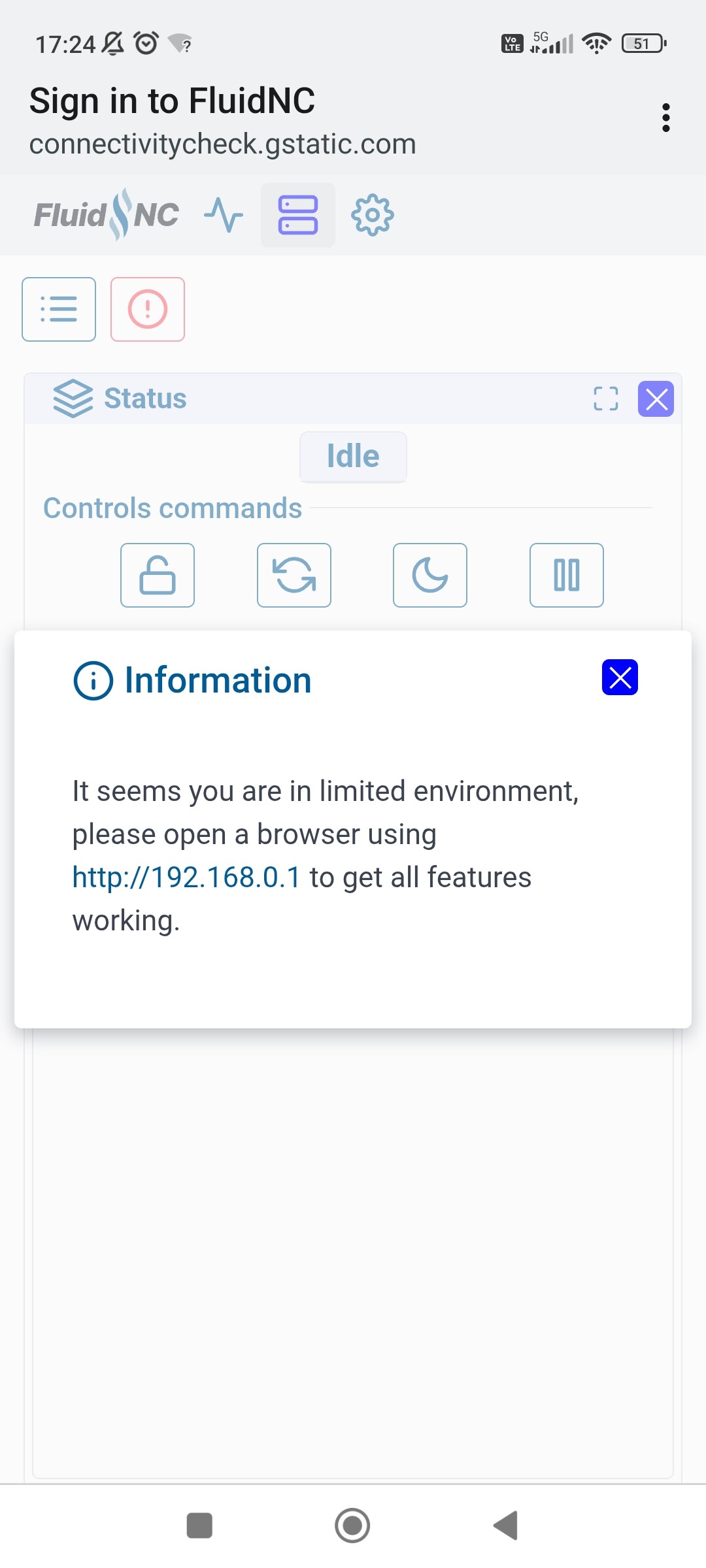
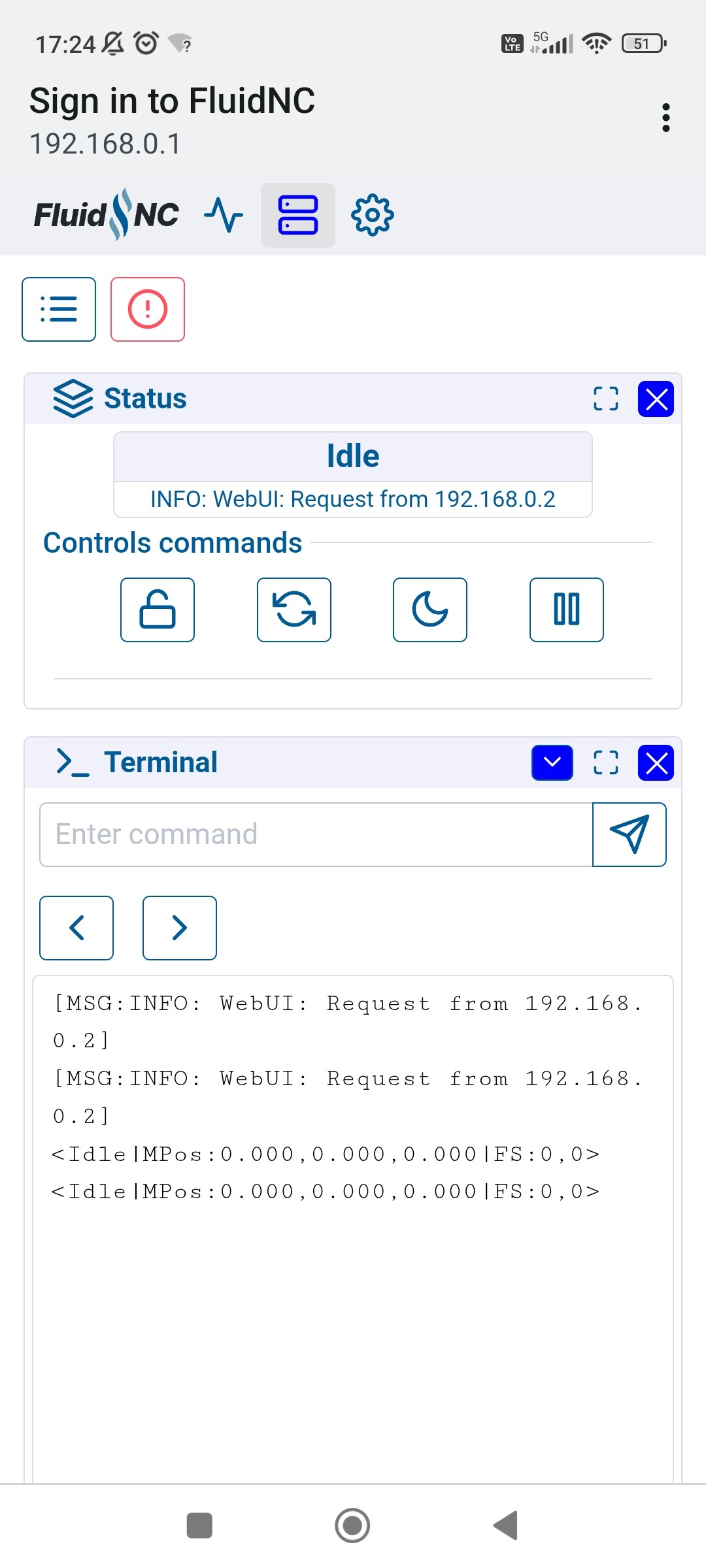
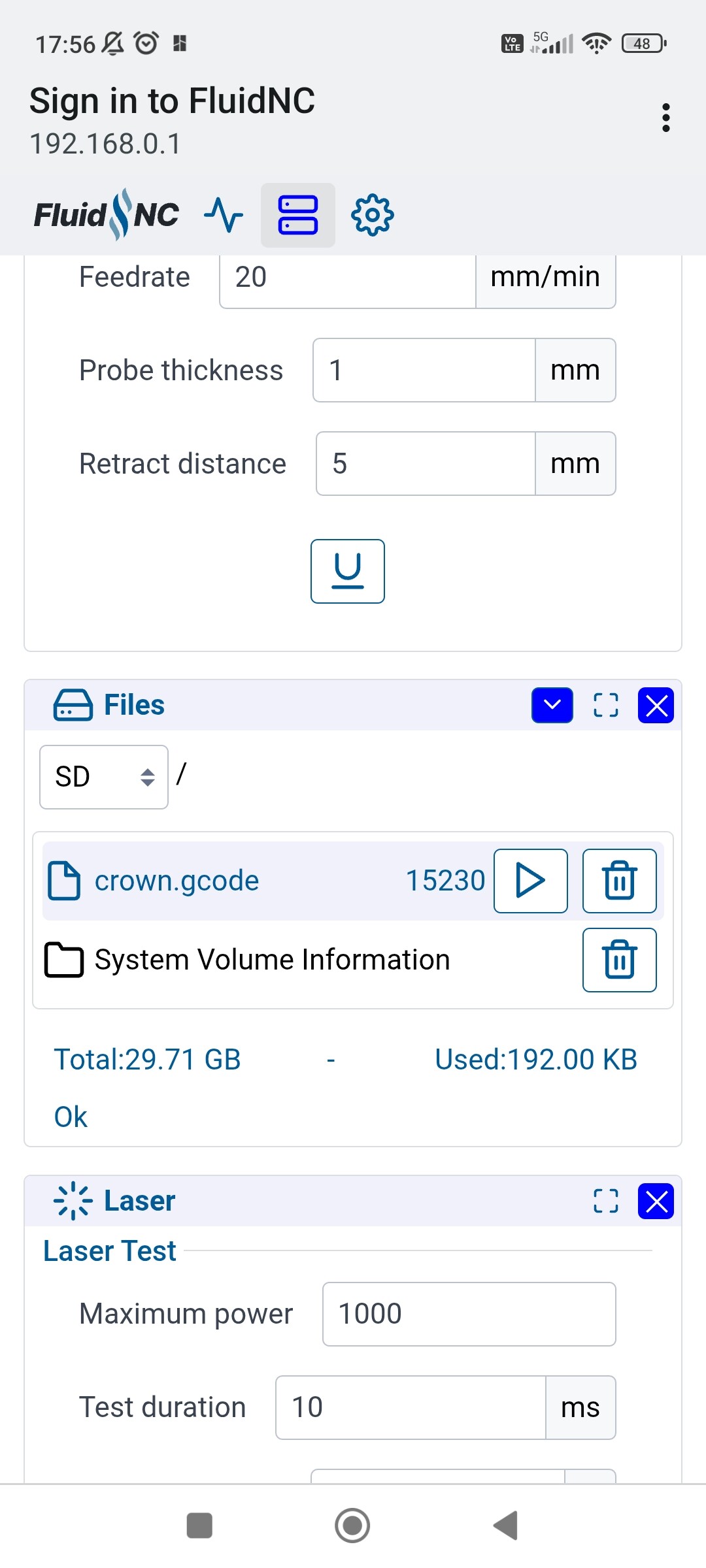
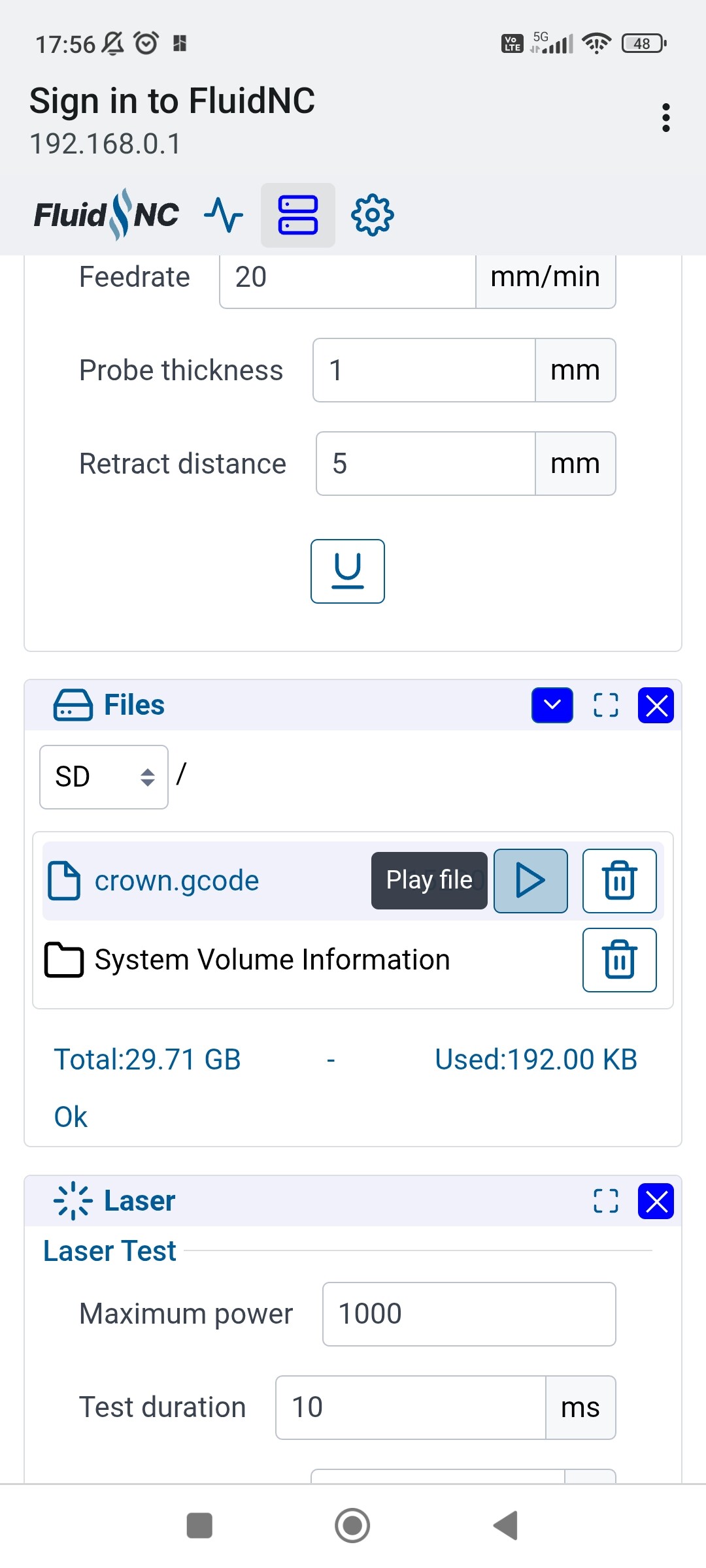
The Upload Files button doesn’t seem to do anything when I press it on Android phone and tablet, and I am also unable to scroll the UI back upwards (by pulling down the screen - it will just refresh). At the moment to go back up to controls I’ve scrolled past I need to refresh the whole page.
This occurs on my phone, Redmi Note 10, and also on a tablet (both android).
I think the scroll issue is fixable with CSS edits, overscroll-behaviour value in css, but the upload button I’m not sure about.
Any idea why this is and best way to fix?
Should I try an update (firmware or UI)?
Thanks
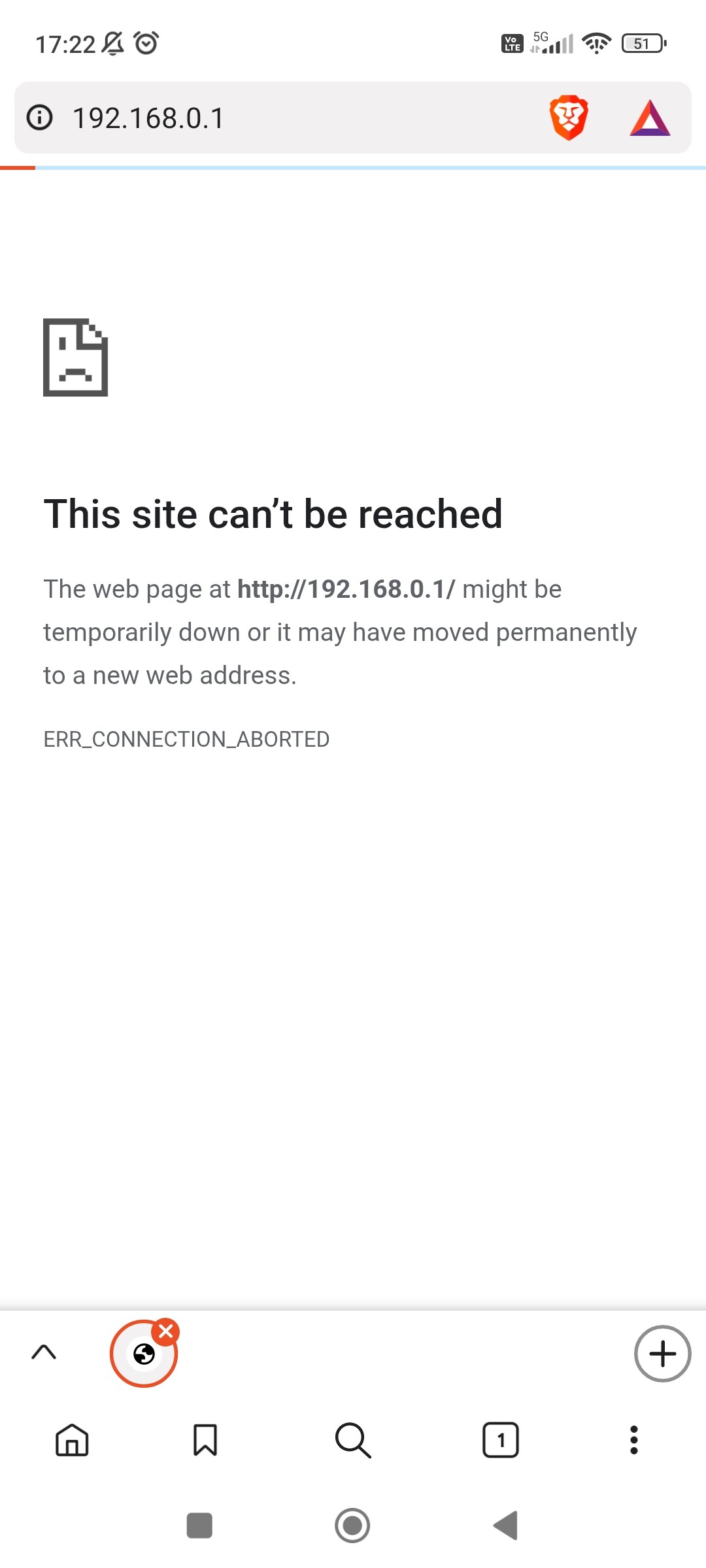
EDIT - Been troubleshooting - pretty sure it’s all because I’m just in the captive browser - can’t get it to open in the normal browser, more details below.
I can jog, but uploading files or playing gcode doesn’t seem to work. I suspect the message about being limited unless in a browser tells me why, just need to figure out why it won’t load in the browser.
Some browsers will then need to be pointed to http://192.168.0.1, best to bookmark that address. If you get a drop down message about no internet just hit “use this network anyway”.
If you just use the page that pops up you should see a warning telling you to go to that address. This is a bummer of a step but for now in AP mode it has to be this way.
So on an android the steps are, connect to the fluidnc wifi, when that page opens hit the three little dots in the top right corner, “use this network as is”, then go to http://192.168.0.1.
This has two less steps on a computer since you can directly click the popup warning.
If you have a strong home wifi network signal in your shop you can use STA mode and all that goes away, direction in the docs.