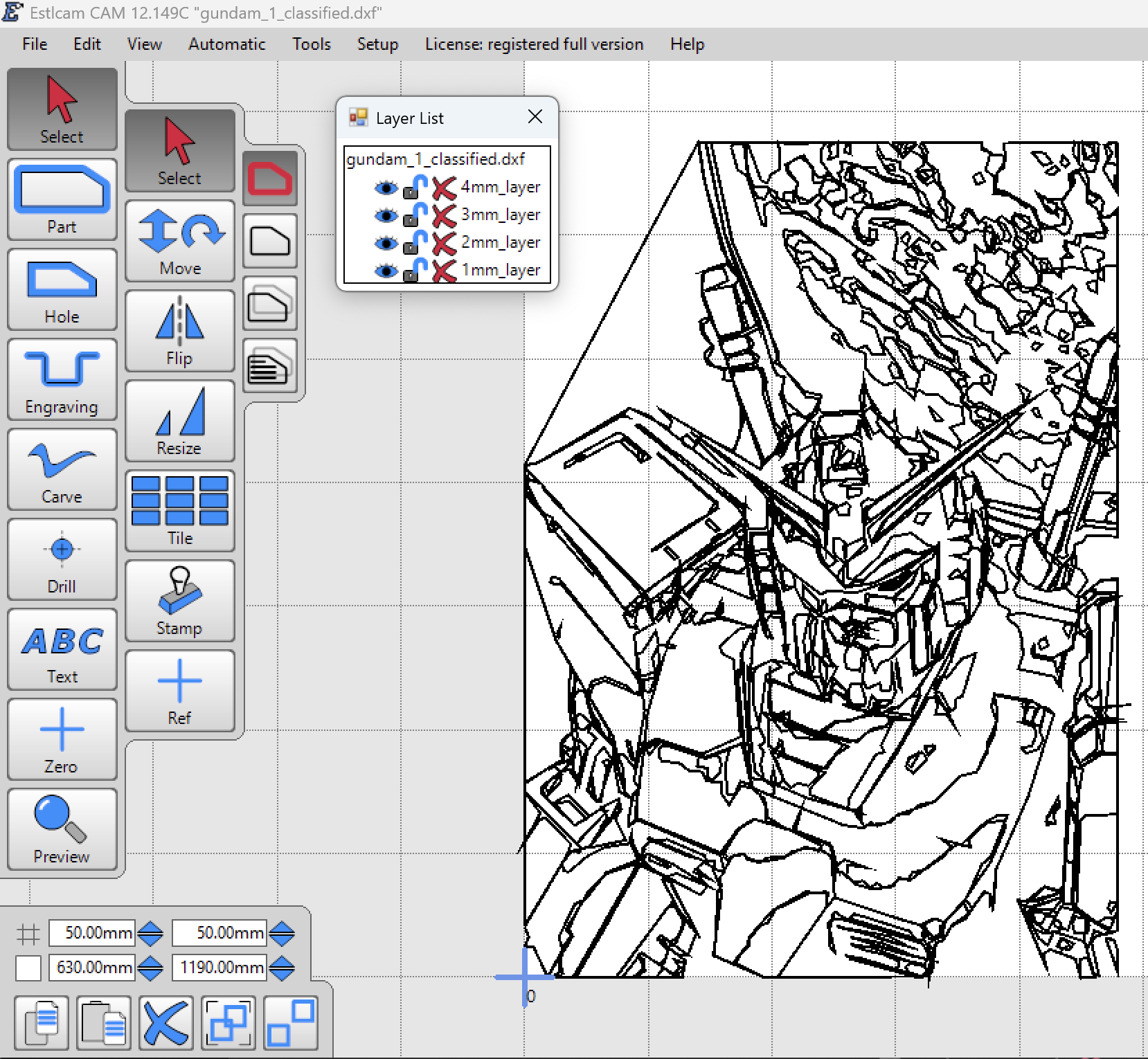
Howdy! I’m working on carving some artwork, and I’ve got separate DXF files of polygons that I want to be layered. Essentially one DXF file is all polygons I want to cut at 1mm depth, the next DXF file is all polygons I want to cut at 2mm depth, and so on.
In EstleCAM, what I am trying to do is:
open 1mm.dxf
Create the tool paths (the automatic function is a god send)
Select all 1mm.dxf polygons and delete them, keeping the tool paths in place
File → add 2mm.dxf ← This is my problem. Whenever I Add another DXF, Estlcam seems to pick some distance away from my origin to render the added file. I want it to open at the same origin point as the original file/rest of the job. Because of this, I can’t really align my layers.
If they did align as they were added, I would repeat making auto tool paths, delete dxf polygons, add the next file, until complete
Any ideas on how I can get the DXF files to “stack up” properly when opening into EstlCAM?
You can just stack them into layers in the original file and then hide them. You might also be able to add both layers at once and then lock/hide one so you don’t have to delete it.
As Phillip said, the easiest way is a layered DXF and using View > Layer list to lock/hide and unlock/show layers as needed. You can also use Edit > Lock/hide for each set of paths you create and Unlock all when you’re done.
Unlike v11 which would register the Inserted file with the existing drawing (if the file had a bottom-left origin), v12 places Added files 10mm the the right of the existing drawing bounding box. Registration requires using Move which is much improved with point to point dragging, but may require drawing registration marks (e.g. https://youtu.be/VCVjiDc0zeA) or setting a reference point with the v12 Select > +/Ref tool to get accurate registration.
Ah-ha, I didn’t realize DXF files could include layers!
Major thank you for the further explanation! Since I didn’t realize DXF files could have layers, I didn’t realize how to use the layers function in Estlcam… I’d try to view layers after adding in some DXF files, but I guess since they were all single-layer files, I technically didn’t have any layers for the tool to show me! In the GIS world, multiple layers in a file is common, but “layers” mostly means “a file in your map project”, hence my confusion lol.
This really helped me with a project I’m working on: doing a carving from an image! Inspired by Trace Bitmap in VCarve, I’ve got a python script that’ll read a jpeg/png and do an unsupervised classification on it. It then converts each class of pixels into polygons, and cleans up all the lil tiny disconnected ones.
Each class is saved as a layer in the DXF (thanks to you guys), and the layers are named after the depth they should be cut…which the script organizes for you based on the number of classes you choose and orders them from darkest/deepest to brightest/shallowest in 1mm increments. Still testing it out, but now that I know how to use the outputs, that should go much better now lol knock on wood. Once I get it going I’ll put it on my GitHub and share it in the right place