You are awesome. I will try it and let you know!
Sounds great. Thank you.
It’s working! You are amazing!
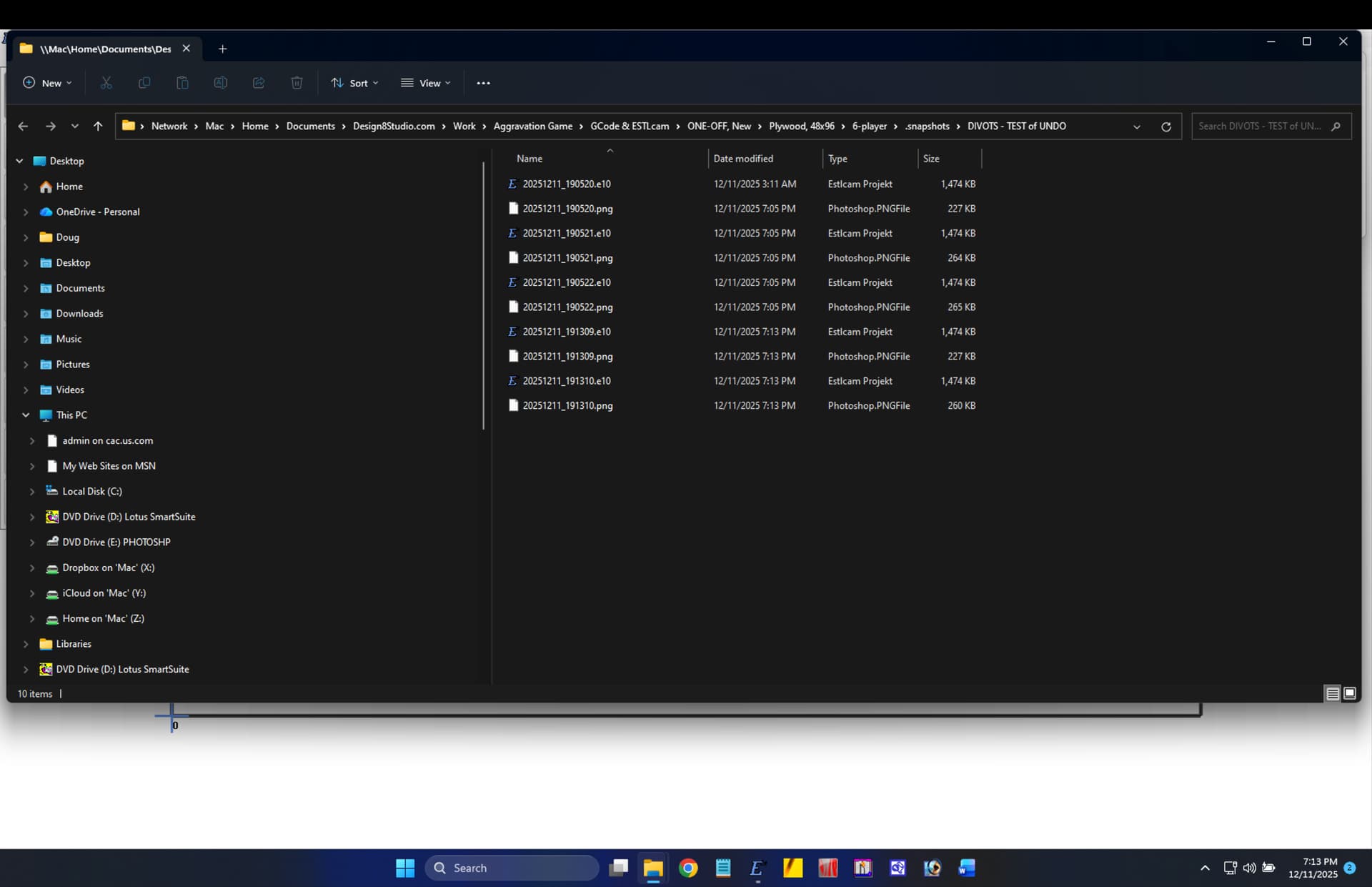
Note: It’s working for me even though I’m running Windows 11 ARM edition inside a virtual machine in a Mac, with my “Windows” Documents folder actually being my Mac documents folder, which is not inside my virtual machine!
ADDED NOTE: On a Mac, any folder starting with “.” (dot) is invisible/hidden unless some step is taken to unhide it, but that’s no problem at all. I can see the snapshots when I look at the project folder from the Windows file explorer.
Thank you! This is so neat.
Also, I used the shell:startup deal to make sure both AutoHokey and ESTLcameo each auto-load at startup of the Windows VM.
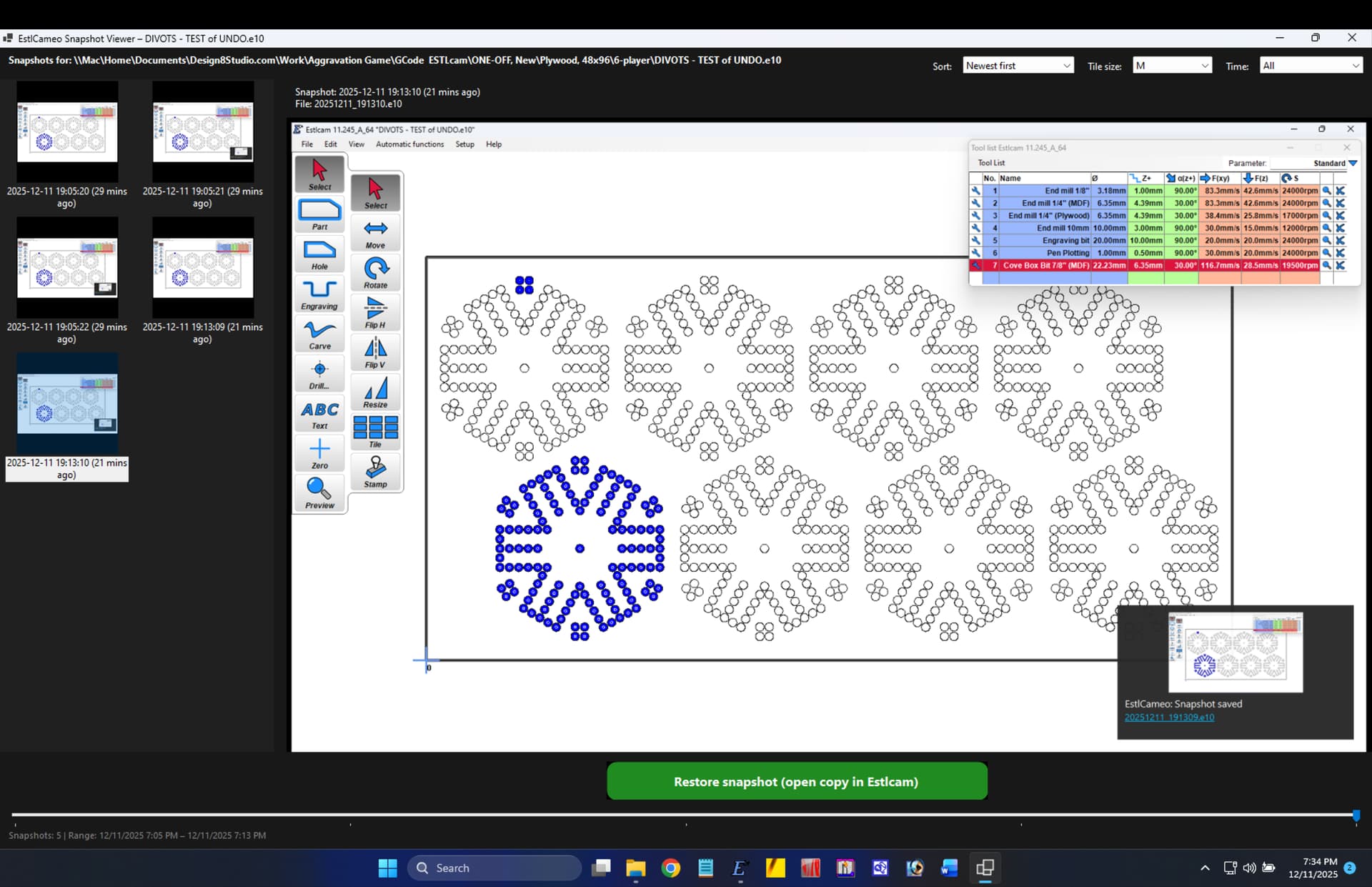
If anyone else would like to see the script I use for AutoHotkey, here it is:
#NoEnv  ; Recommended for performance and compatibility with future AutoHotkey releases.
#Warn  ; Enable warnings to assist with script writing.
SendMode Input ; Recommended for new scripts due to its superior speed and reliability.
SetWorkingDir %A_ScriptDir%  ; Ensures a consistent starting directory.

; --------------------------------------------------------------------------------
; ESTLcam V11: FINAL WORKING SCRIPT - New Coordinates (20px Item Height)
; TARGET FOR CTRL+S IS NOW Y=135
; --------------------------------------------------------------------------------

#IfWinActive ahk_exe Estlcam.exe

; 1. Open (Ctrl+O) - Y=75
^o::
    Send !f        ; Open File Menu
    Sleep 300
    Click 50, 75   ; Click 'Open'
    return

; 2. Insert (Ctrl+I) - Y=95
^i::
    Send !f
    Sleep 300
    Click 50, 95   ; Click 'Insert'
    return

; 3. Update Drawing (Ctrl+U) - Y=115
^u::
    Send !f
    Sleep 300
    Click 50, 115  ; Click 'Update Drawing'
    return

; 4. Save project (Ctrl+S) - FINAL TARGET Y=135
^s::
    Send !f
    Sleep 300
    Click 50, 135  ; Click 'Save project'
    return

; 5. Save project as (Ctrl+Shift+S) - ANCHOR POINT Y=155
^+s::
    Send !f
    Sleep 300
    WinActivate, ahk_exe Estlcam.exe
    Send !f
    Sleep 300
    Click 50, 155 ; Click 'Save project as'
    return

; 6. Save CNC program (Ctrl+P) - Y=185 (155 + 20 + 10 separator)
^p::
	Send !f
    Sleep 300
    Click 50, 185
    return

#IfWinActive
NOTE: The script for “Save project as” (assigned to Ctrl+Shift+S) is different because that hotkey choice gets intercepted by the VM software as a request to toggle to a different keyboard layout, and so I have the script shift focus back to the ESTLcam window before repeating the command to open File menu and do the virtual mouse click!
Hello,
I’ve now added a “backup” functionality with Version 13.000:
- When the program closes the current work is automatically saved.
- Hotkey “Ctrl” + “B” also creates a backup.
- Hotkey “Ctrl” + “R” restores the backup
- Keep pressing repeatedly to access older backups.
- Older backups are automatically deleted if there are more than 100 or disk space is running low.
I know it is no 100% replacement for a real undo but at least a first step.
Christian
This sounds great!
Can we make this optional? I sometimes just try stuff out and then close it because I know it‘s not going to be saved…  If it saves every time, I have to delete everything again before closing it.
Estlcam 13 includes backup and restore, not regular undo, so, I owe you a shandy or half a beer (e.g. coors light) for now…
[I haven’t imbibed since 2017]
Coors light is what you produce when you unload a Colt 45 later on.
On subject, that’s a really nice addition to EstlCAM. I agree with Philipp that the auto save on close should be optional.
Hello,
“auto save” was the wrong wording - “auto backup” is more fitting.
It does not alter the project file you create by menu “file” / “save”.
It just crates a hidden backup that remains unused unless you actively restore it with the hotkey.
Christian
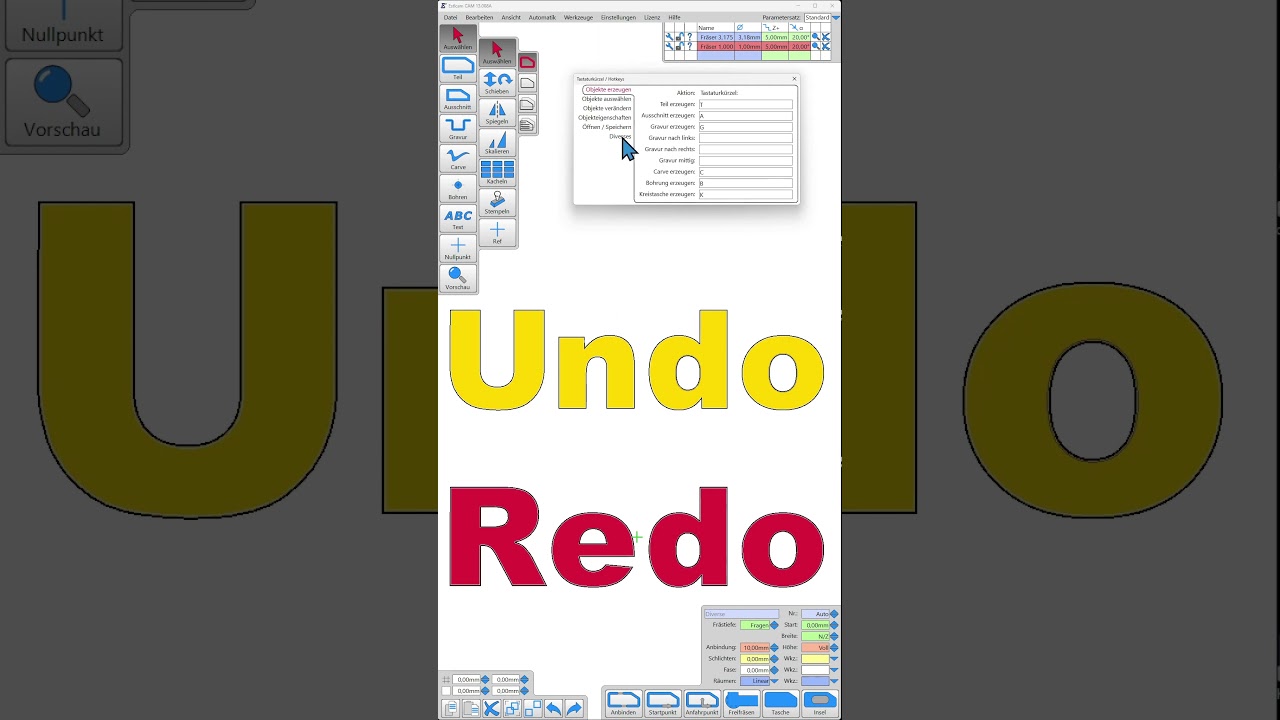
Estlcam now has an undo and redo function:
Amazing!!! Thank you!
That is awesome! thanks!
May i ask, what is estlcameo?
???
