You all know that I generally don’t like AI, but this was a pretty neat usage for it I think: This tool was written by Claude. It cost me a bit of time nevertheless, because I had many ideas that I wanted to put in. It’s not perfect, but good enough for me, here it is:
openprinttag-explorer-v8.html.zip (24.0 KB)
/edit: New Version 8 with a lot of minor tweaks for usability, a hint about the deletion of the cache on moving the file etc.
It loads the filaments once every 24 hours, all the other settings (like favrourites) are written into the IndexedDB and are not getting refreshed/deleted. Besides refreshing the list the tool works completely offline. If you move the HTLM, your favourites etc. are gone, so make sure not to do that…  V7 now lets you backup and import your settings.
It gives you a list of all filamentes that are in the database that can be filtered by several criteria.
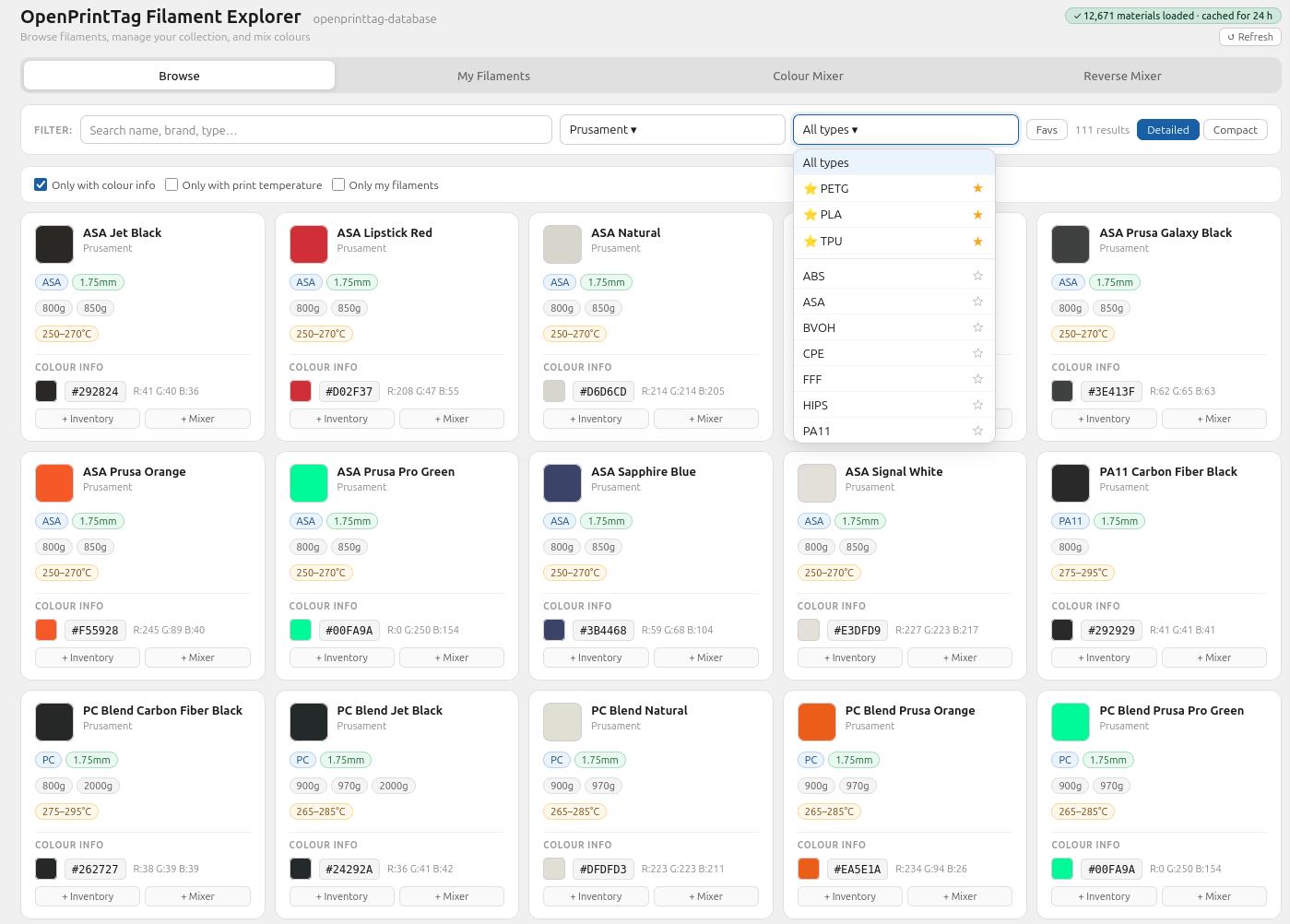
You can also add the filament to your personal collection (my Filaments, besides that the tab is boring).
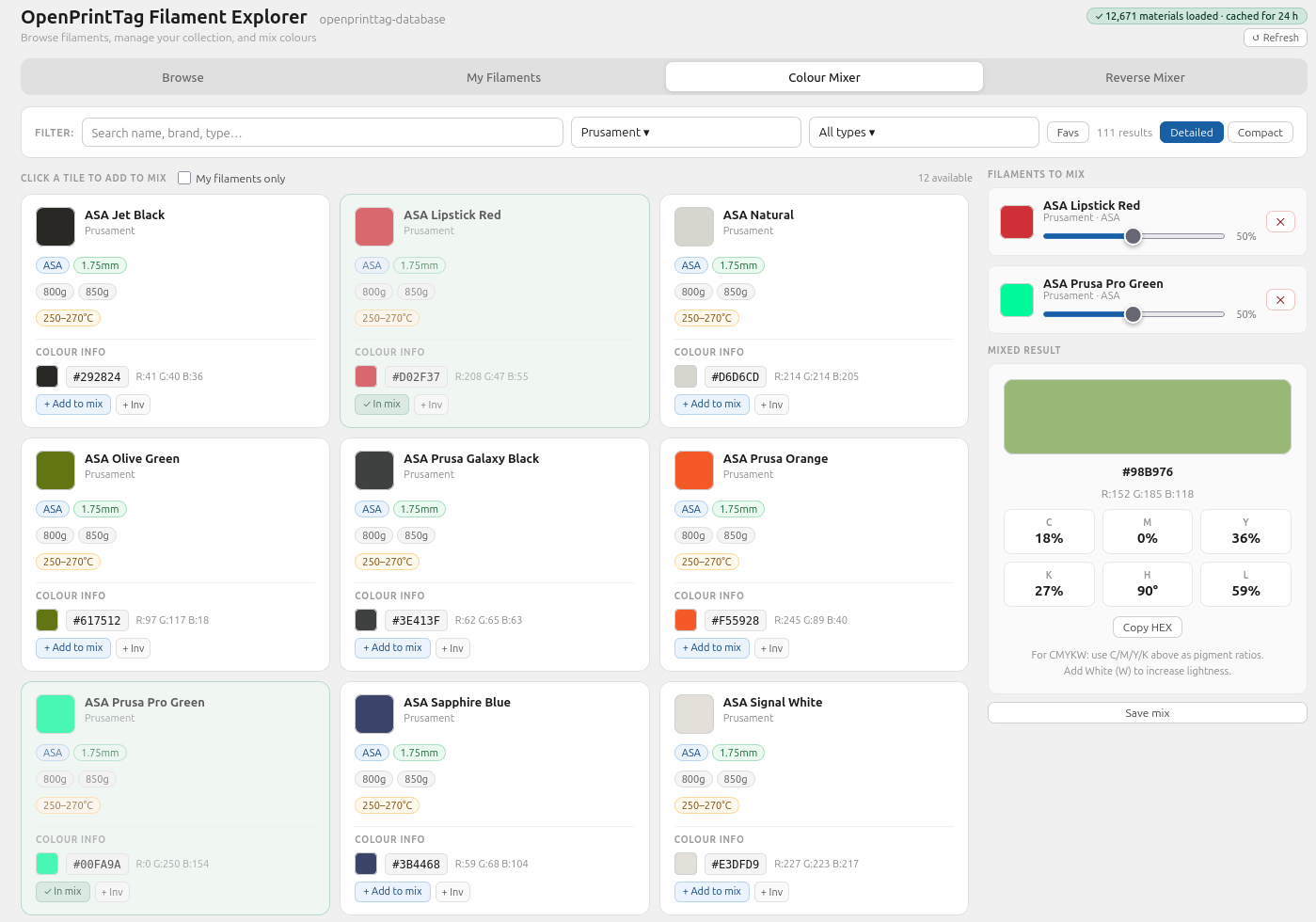
You can also add a colour to the colour mixer so you can see what it looks like combined (really interesting for INDX):
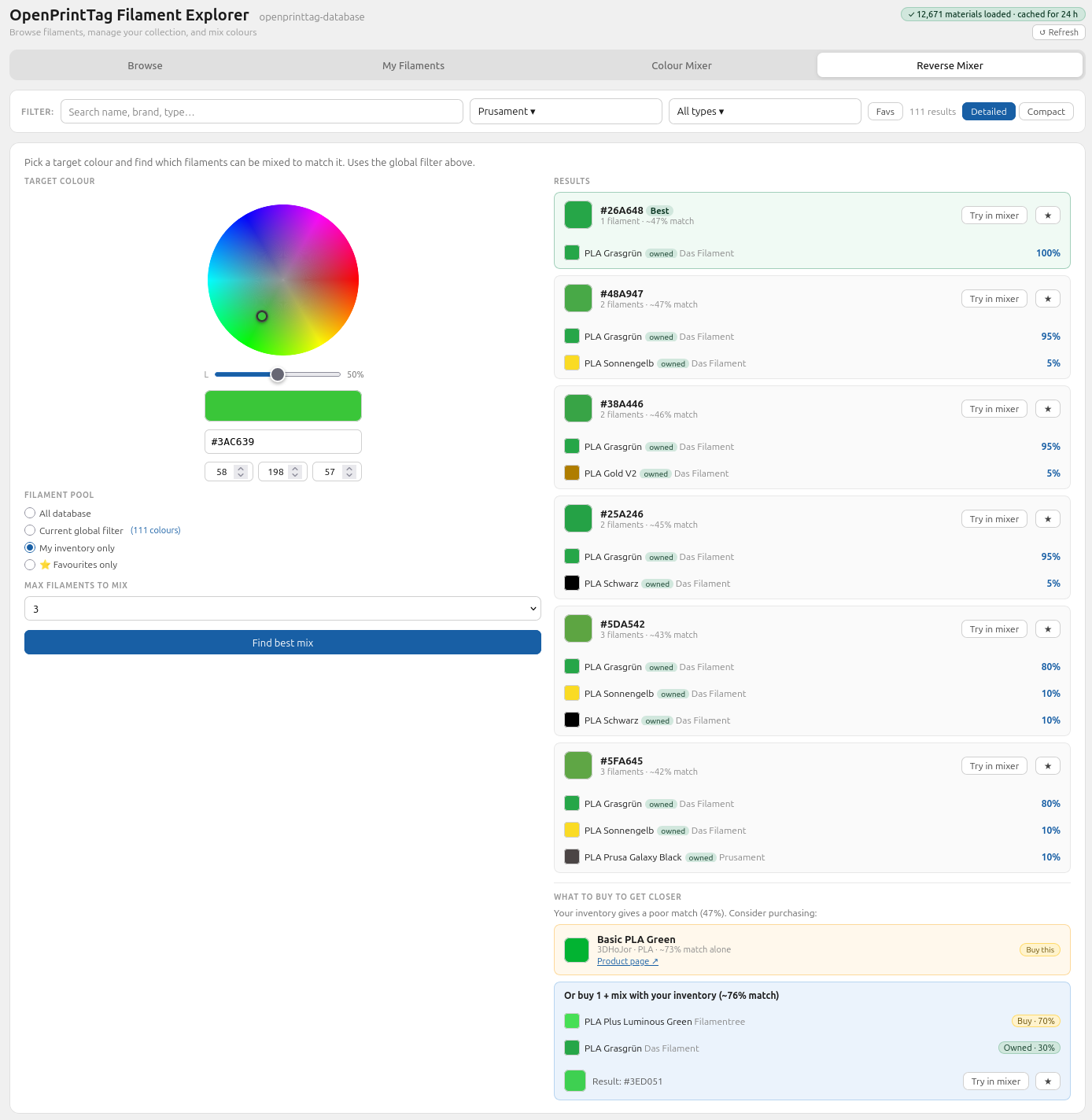
The reverse colour mixer lets you choose a colour and it shows you if you can mix it with your own colours (if you selected “my inventory” only or “favourites only”) and gives you a link where you can buy an additional or single colour that comes closest to what you want.
If you have all the filaments enabled it tells you the closest combination.
If you have feedback, I’ll gladly feed it to Claude Free. 
AI manual as well:
OpenPrintTag Filament Explorer — User Guide
Overview
The OpenPrintTag Filament Explorer fetches the entire OpenPrintTag database directly from GitHub and displays all filaments with their technical data, colour codes, and spool configurations. After the first load, all data is stored locally in the browser for 24 hours (IndexedDB), so the app is ready instantly on subsequent visits. The “Refresh” button clears the cache and reloads fresh data at any time.
- Warning: The app stores data locally in your browser. A cache warning appears on startup and can be dismissed or minimized. Export a backup before moving or deleting the HTML file or folder.
Global Filter Bar
The bar directly below the tabs applies to all four sections simultaneously.
- Search field — filters by name, brand, or filament type. Results update instantly on every keystroke.
- Brand selector — opens a dropdown with all available brands. Each brand has a star icon next to it to mark it as a favourite. Starred brands always appear at the top of the list.
- Type selector — works the same way as the brand selector, but for filament types (PLA, PETG, TPU, etc.).
- Favorites — activates the favourites filter. When both brands and types are starred, only materials matching a favourite brand AND a favourite type are shown (AND logic, not OR). If only brands or only types are starred, filtering applies to that criterion alone.
- Detailed / Compact — switches between the full card view (with colour info and all badges) and a compact list view. The setting applies across all tabs and is saved permanently.
Tab: Browse
Displays all filaments in the database as tiles. Each tile shows:
- Colour preview
- Name and manufacturer
- Filament type and available diameters
- Available spool weights
- Print temperature range (if available in the database)
- Hex colour code with RGB values (if available) — clicking the hex code copies it to the clipboard
Each tile has two quick-action buttons at the bottom:
- + Inventory — adds or removes the filament from your personal collection
- + Mixer — adds the filament to the colour mixer. If the filament is already in the mix, the button shows
✓ In mix; clicking again removes it.
Clicking the tile itself opens the detail view inline on the same page, not as a popup. It shows:
- Full colour codes (HEX, RGB, CMYK, HSL, transmission distance)
- Print parameters (print, bed, chamber, and preheat temperature; density; Shore D hardness)
- All available spool configurations
- Product photo and link to the product page (if available in the database)
- Star icons next to brand and type for quickly adding them to favourites
The Browse tab also contains additional filters:
- Only with colour info — hides all materials without colour data
- Only with print temperature — hides all materials without temperature data; temperature range checkboxes appear below for further narrowing
- Only my filaments — shows only materials from your personal collection
Tab: My Filaments
Displays all filaments in your personal collection using the same tile layout as Browse.
- A search field at the top lets you find and add any filament from the database. Clicking a result adds it immediately.
- Your collection is saved permanently and survives browser restarts.
- Clicking the “+ Inventory” button on a tile removes the filament from your collection.
- Clicking the tile itself opens the detail view in the Browse tab.
Tab: Colour Mixer
Lets you virtually mix 2 to 4 filaments and calculate the resulting colour.
How to use:
- The left panel shows all filaments matching the current global filter as tiles. Filaments already in the mix are highlighted in green and labelled “In mix”; clicking the same tile again removes it from the mix.
- The “My filaments only” checkbox restricts the selection to your personal collection.
- Click a tile to add or remove a filament from the mix (maximum 4).
- The right panel shows the added filaments with a slider for each mixing ratio. Percentages are normalised automatically.
- The mixed colour is shown immediately as a preview with HEX, RGB, CMYK, and HSL values.
- Only filaments of the same type (e.g. only PLA) can be mixed. An error message appears if different types are added.
- Use “Save mix” to save a mix with a custom name. Saved mixes appear below and can be reloaded or deleted at any time.
Note on CMYKW: The CMYK values in the result represent relative pigment ratios as used in CMYKW mixing systems. White (W) can be added to reduce the K component and increase brightness.
Tab: Reverse Mixer
Lets you enter a target colour and find out which filaments need to be mixed to achieve it.
Choosing a target colour:
- The colour wheel displays hue and saturation. Drag the cursor on the wheel with a mouse or touch gesture.
- The lightness slider below adjusts the overall brightness of the colour.
- Alternatively, type a HEX value directly or enter individual RGB values. All inputs and the wheel stay in sync.
Choosing a pool:
- All database — searches across the entire database
- Current global filter — uses only filaments matching the current global filter; the number of available colours is shown
- My inventory only — uses only filaments from your personal collection
- Favourites only — uses only filaments from your starred brands and types
Search results:
Results are sorted by colour match (percentage based on perceptual Lab colour distance). The first result is always the closest match. Each result shows:
- A preview of the mixed colour
- All filaments involved, with their mixing ratios
- Whether a filament is already in your collection (“owned” badge)
- A “Try in mixer” button to load the result directly into the Mixer tab
- A star button to save the result as a favourite
Purchase suggestions (in Inventory and Favourites mode):
When using “My inventory only” or “Favourites only”, a purchase suggestion section always appears below the results:
- Single purchase — the one filament from the full catalogue that comes closest to the target colour on its own, with a direct link to the product page
- Buy + mix — if combining a new filament with one you already own gives a better result than buying a single filament alone, this combination is shown with exact mixing ratios
Purchase suggestions always match the filament type: only filaments of the same type as those already in your collection are suggested.
Saved Mixes and Favourites
All of the following data is stored permanently in the browser (IndexedDB) and persists after closing the browser:
- Personal collection (My Filaments)
- Favourite brands and types
- Saved mixer combinations
- Saved reverse mixer results
- Display mode (Detailed / Compact)
The data cache (filament database) is stored separately and expires automatically after 24 hours. Personal data is not affected by this and is preserved when refreshing the database manually.
Cache warning
- When local cache exists, a red cache warning appears above the lists. It informs you that data is stored in your browser and can be dismissed or minimized.
- The app uses IndexedDB for local caching. Export a backup before moving or deleting the HTML file or folder.
License
- The OpenPrintTag database is licensed under the MIT License.
- This app is a standalone HTML file authored by HaWiWe Holzdesign und 3D-Druck.
- Modifications should credit HaWiWe Holzdesign und 3D-Druck.
- Data source: GitHub - OpenPrintTag/openprinttag-database · GitHub (MIT License, Copyright 2025 PRUSA RESEARCH A.S.)
Technical Notes
- The app is a single HTML file with no external dependencies. It can be saved locally and opened directly in any browser.
- An internet connection is required for the first load (fetching from GitHub). After that, the app works fully offline for 24 hours.
- Colour mixing is performed in linear light space (gamma-corrected) to produce physically accurate blending results.
- Colour distance comparison in the Reverse Mixer is based on the CIE Lab colour space, which corresponds much more closely to human colour perception than simple RGB distance.
 .
. 


