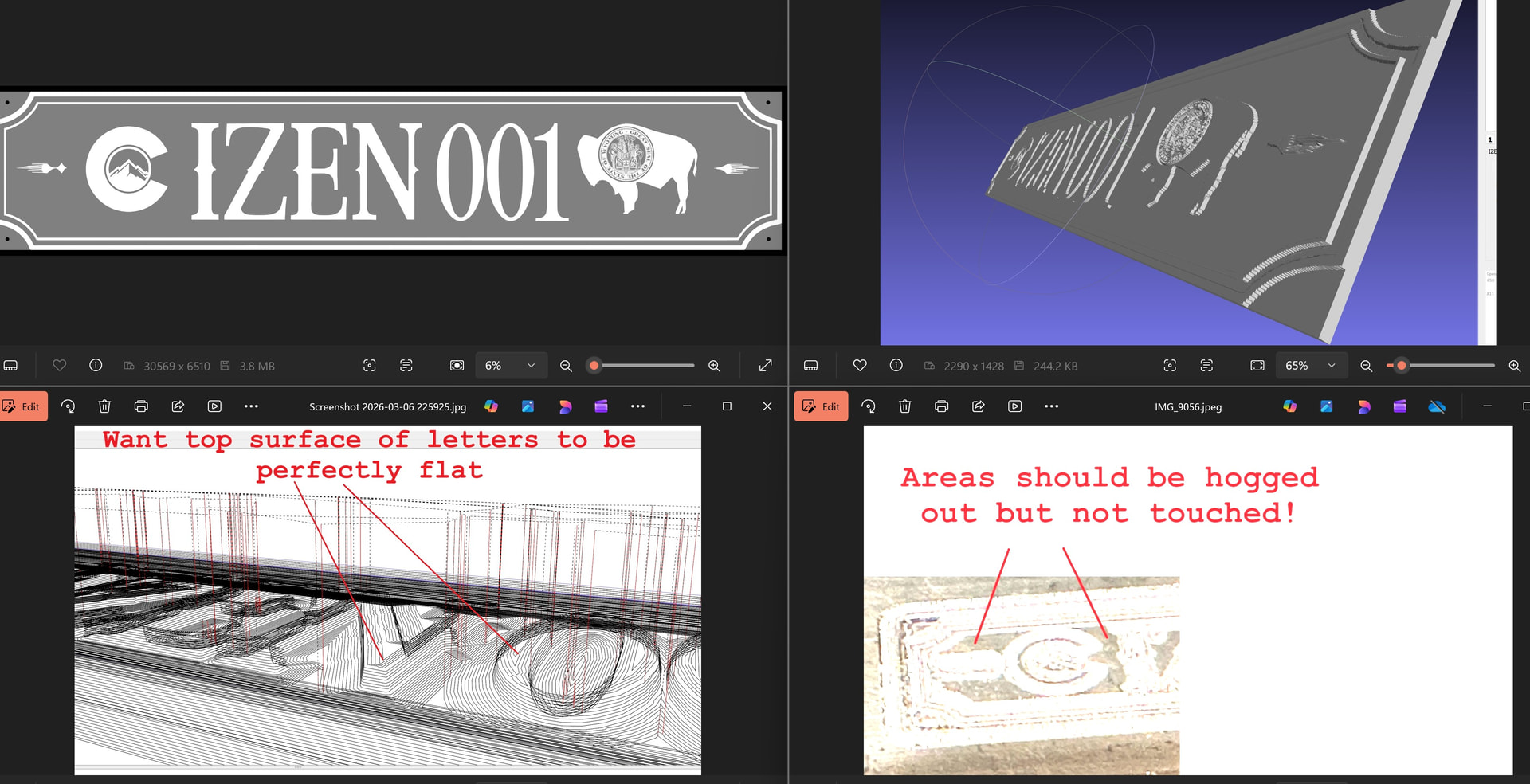
problem 1) Top surfaces of letters are not flat in gcode output
problem 2) areas not hogged out in finished work. Stated otherwise, tool paths observed in gcode rendering not observed on work piece.
Do not use an stl with Estlcam, this will trigger 3D machining. Use a dxf.
Working with stls is usually reserved for “real” 3D, not 2.5D like the sign. The way you are trying to do it is overly complicated and introduces problems that can be avoided with simplifying the process.
convert the stl to a flat svg and open that in estlcam.
Use part to go around the outer edge of the inner outline. then use hole to go around the inside of the outer outline and press island. this will level the outer edge to give you the step. Set depth to 8 mm or something less than full depth
use part to go all around the outside. make sure you put in a holding tab in at least 2 places.
use the carve function to mill around the text and state icons. set diameter to 50 mm and it will cutl all the space between the letters and the edge of the sign. Use a 60 deg v bit for the detailing and select an appropriate pocket mil to do the large area removal. set all depth to 4 mm.
save file and select correct post processor for your board in the basic settings and
If the model is flat, the G-code output will be flat. I think the irregular spacing/shapes of the waterline paths is making them look topographical in places that they aren’t. Switching to linear paths (default) would clear that up. Double clicking on the Estlcam path preview to toggle to the side view, maybe click and drag to tilt it a bit, is another option.
Anytime the cut paths don’t match the G-code paths it’s a mechanical issue. I’m guessing that Z steps were lost (typically feedrate) and that the areas not touched were at the and of the program.
That’s a pretty ambitious project for anyone, much less a noob. As the others have said, the bulk of that sign would much faster to cut in 2(.5)D using your SVG (with likely better results). You could start with cutting an STL of just the seal. You could also try some Automatic functions : Create objects automatically options, e.g. just closed carve outside (or inside) selected, on a simplified SVG, e.g. without the finer detailed seal, mountain circle and side decorations… It’s aging a bit, but Dave Lers : Workshop : CNC : Estlcam : Carving might help w/ details.