I have very in-depth knowledge of the code, and I am an active developer with over 30 years of coding experience. But I am using this project as a testbed for trying out the new AI tools. I am trying Codex and Claude and using them to help with features, code reviews and writing automated test cases. They are a real game changer and allow me to implement changes much faster than by hand. I do need to check what it produces, as sometimes it does generate some questionable code. Each model release gets better and better.
I moved the reply to this topic as i did not want to hijack the original posters topic.
Thanks for the thorough testing and for sharing WoodCam’s code. It was a real help.
Based on your suggestions, the 3D Profile now has:
- a raster finish that stays down between lines whenever that’s faster than lifting, with smarter links between passes;
- a new Waterline (contour) finish with ramped step-downs, which also clears flat areas;
- a machining boundary, cleared down to the model’s base, and an option to sink the model below the stock top;
- end-mill roughing, after which the ball finish skips flat areas the end mill already finished.
It all still works directly from the mesh, with no CAD solid. I have added an acknowledgment and pointer to your WoodCam project on my git page. Any other suggestions are always welcome.
Thanks again!
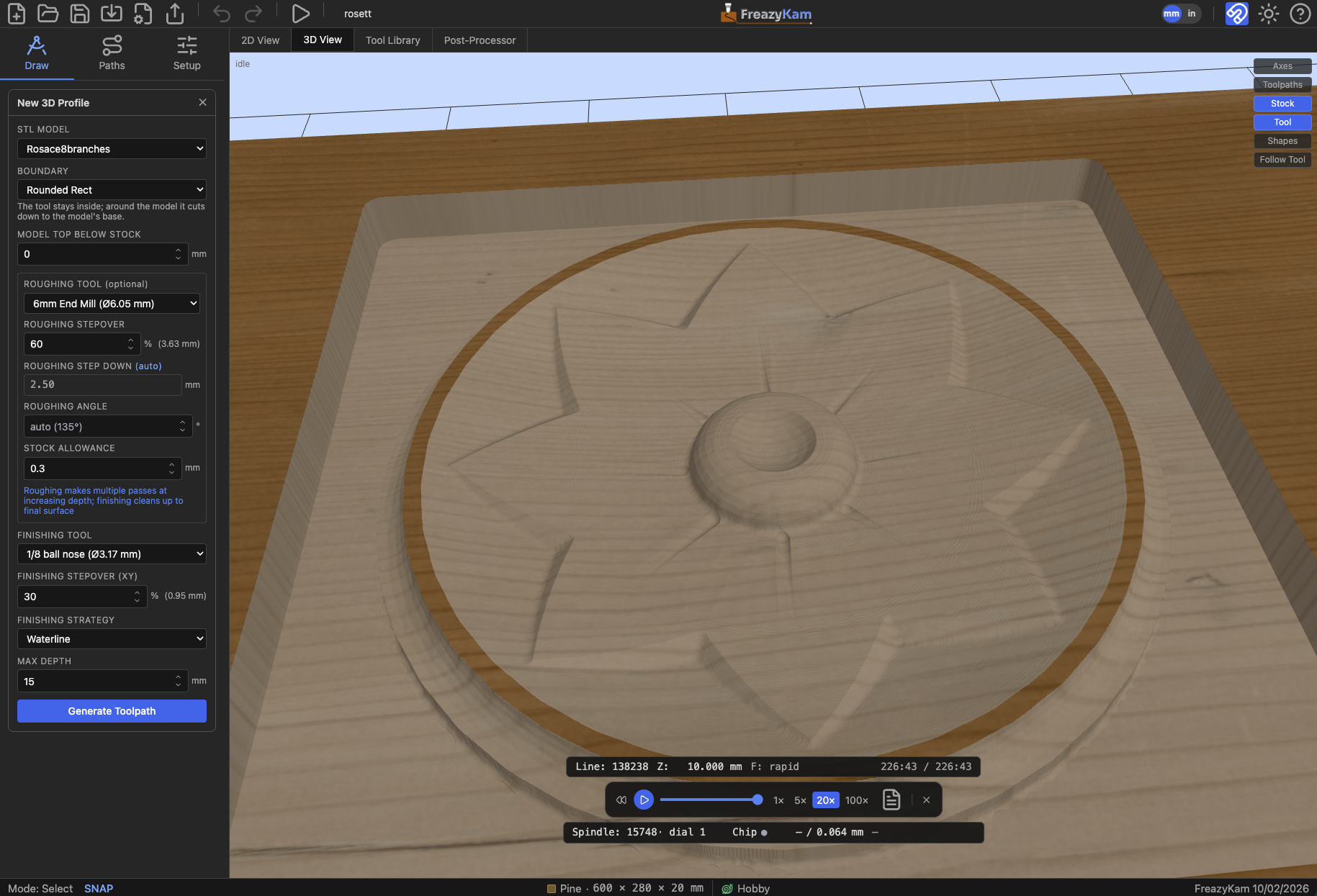
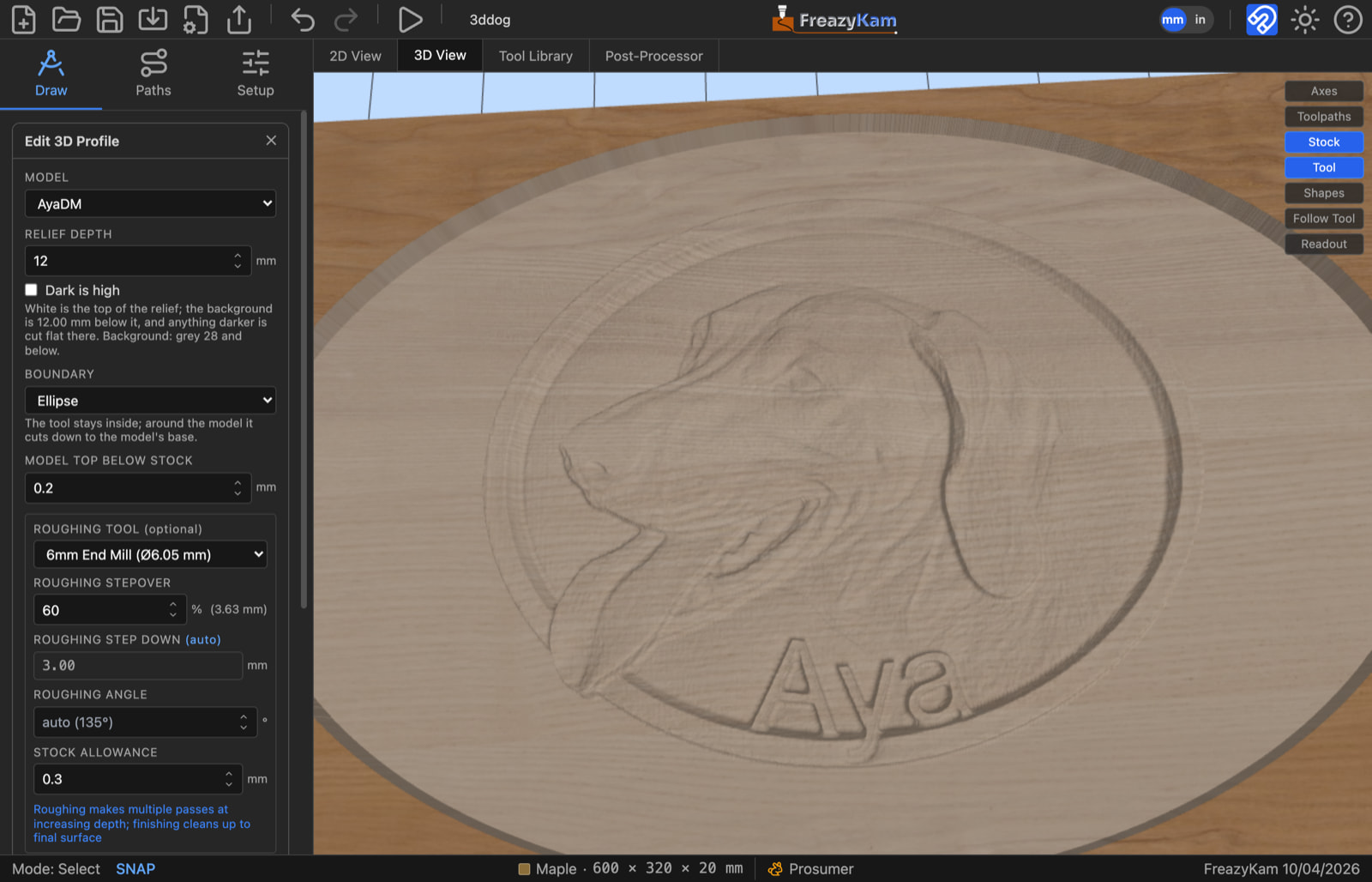
I saw all the cool 3d image maps in this thread and couldn’t resist adding support form them in freazyKam. Here is a screen shot.
This is super easy to make my leveling passes on the shop pc without my design software installed.
Im thinning down some fr4 circuit boards.
Your post processor setup is easy to use so i can make the custom part interface with my system that runs klipper.
This is amazing, nice work. Is there a way to look at estimated time for each step. I see when you simulate the job, it gives a total time, but not individual step times. This can be helpful when developing a tool strategy for a job.
Adding to an estimated time for each step, it would be nice if the steps interface would be more clear. It’s now a small bar in the bottom, maybe in the/a sidebar?
@staffordj Thanks for the suggestion, the ops chips in the bottom tool bar already has the time each operation takes in time and as a percentage of the whole job. You need to change from the objects list to the ops list by clicking the toggle. it is not obvious, especially if there are many operations, but hovering the mouse over each chip will show the times in a pop up. As pointed out by @juliusvaart next reply, it might be better to have more space to display the operations list in a larger panel. I will look into this when i get a chance. Thanks for trying it out and providing feedback this helps make it better for all.
Thanks, that is what I was looking for, I just didn’t see the ops toggle. Maybe it is in another thread, but can you share a little bit about how the auto strategy works? Does it adjust feeds based on slotting and corners, or is it just set feeds and speeds based on stock and tool rigidity? I know on the LR, a lot of people set a feed rate and increase DOC to speed up the process. When I select Prosumer, it looks like DOC is set to half of the bit diameter. This is low for a lot of the users I have seen, including myself. I typically run 4-6mm DOC for a 1/4 endmill.
This is awesome @Elmkom thank you for your work and for sharing!
I’ve been complaining about the CAD/CAM aspect of this hobby since my intro about a year ago… there is a massive hole in the market for something “simple but good” that doesn’t harvest user data.
Additionally, I love the “lets make a coaster” tutorial, something like that would have helped me a lot when I started out! Yes there are other tutorials, but there’s something to be said about everything being in one easy place. I’ll give it a try when I next get some CNC time  Thanks again!
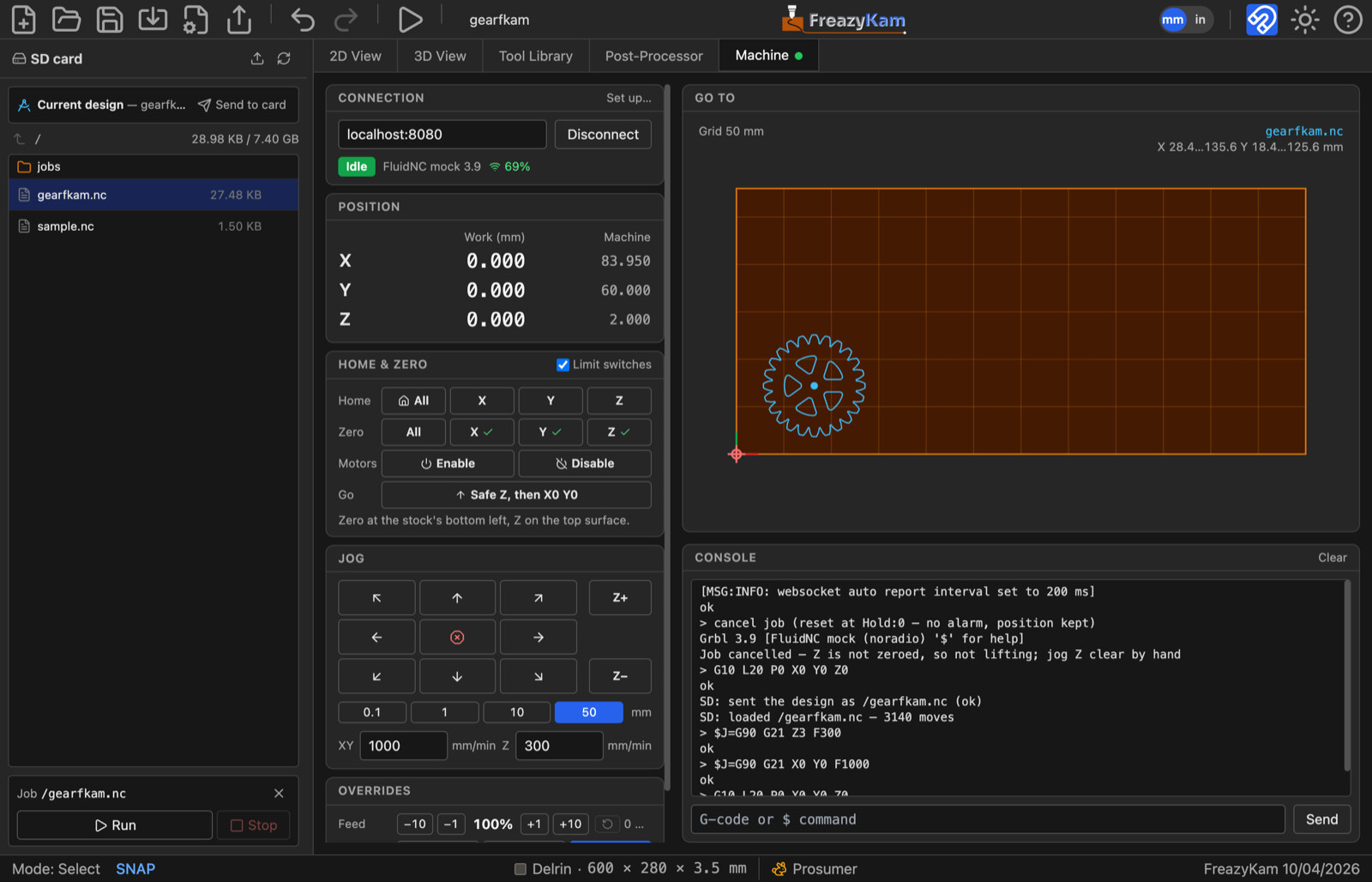
i have added an experimental machine control panel that only work with fluidnc at the moment as that is what I have. I have tested with version 4.1.1. it is basic at the moment but functional. It lets you upload, jog, zero and run files with a gcode preview that shows the machine progress. Once zeroed you can also just click anywhere on the stock area to move to that location. To make this work you need to install a small relay file on the controller as https sites are not allowed to connect to local http sites which Fluidnc is. Fluidnc today only servers the index file and other files are just downloaded but i found that it also servers a 404.htm file if no file matches. I exploited this to add my relay code. you just upload a small 404.htm file to the flash files system of the controller. Fluidnc also needs to be on your network not in AP mode for this to work. This is documented in the docs if someone would like to try. Here is a screen shot of the machine tab. This relay trick means we are no longer limited to a small index file for the ui we can make it as fancy as we want. Let me know if Fluidnc machine control is useful and should be pursued.
Bundeling it in an Electron App would also be super nice on Mac, Linux and Windows.
Also a more robust way of saving settings/tools would be nice in a dedicated app.
(Really love it so far!)
I have played around with this for a little while. Maybe it already exists, but it would be neet to be able to place/mark “clamps” on the workpiece?
Note that as of FluidNC v4.0, you don’t have to do the 404 thing. If you have a file like relay.html (or relay.html.gz), you can have it served off flash with http://fluidnc.local/flash/relay.html. Or you can have it served off SD with http://fluidnc.local/sd/relay.html.
This should also allow it to work in AP mode.
“experimental machine control”
Sounds awesome. Im interested in a simpler “slicer type” option that could optionally save or upload the gcode to the machine via an ip address. Could you do that? It just saves the user from saving and then finding the gcode file from another browser window. Orcaslicer does it so the “how” is known.
Sure can. You can do that from any FluidNC web UI.
Thanks for the great feedback.
@juliusvaart while electron might be nice i do not want to have to run multiple builds and then have the user download an app every time i make a fix so for now at least i will keep it as a web page.
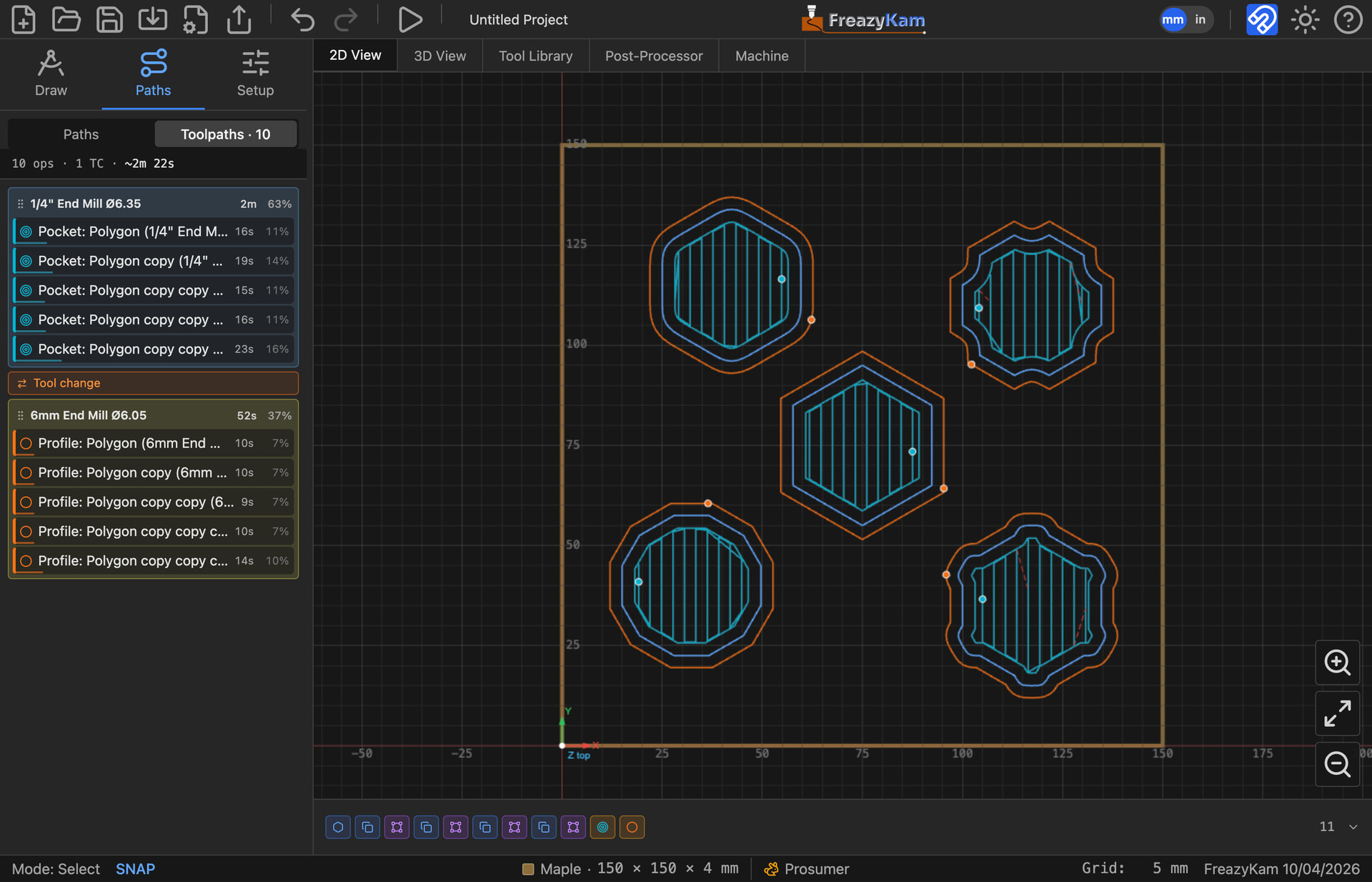
I have taken your suggestion and moved the ops list to the side panel it is now under the paths tab tool paths selector as it has a lot more room there. The times are now much easier to see. Paths can be dragged up or down to rearrange them.
The feeds and speeds only use material hardness and machine rigidity, you are correct i used conservative DOC as I did not want to break anyones bit with too aggressive settings. you can turn auto feeds off and set your own DOC and feed speeds in the tool library per bit or you can try with a higher machine rigidity. If I can get enough feed back on what users are actually cutting with on these hobby machines I may be able to adjust the calculation.
Can you explain a bit more on what a clamp marking feature would be used for. Is it just so you do not move parts to a clamp area or are you thinking more of a 3d model of a clamp and some kind of collision check.
Why can you only mention 3 people in a post ??
[Jason] Thanks for the v4.0 paths advice I have changed the machine panel to download a freazyKam.html file that can be uploaded to the controller with a fall back to 404.htm for prior versions. I have also updated the docs to reflect this.
[orob] Yes the machine panel has a send current design button so the current tool paths can be uploaded to the controller with out even saving to disk. so it is very quick to create and make a simple cut. Your comment also made me think to add an export/import , settings, tools, and post processor so it is easier to share tool libraries or post processor settings. If you have configured a post processor for your machine you can now export it an if you send it to me i can include it as one of the default profiles.
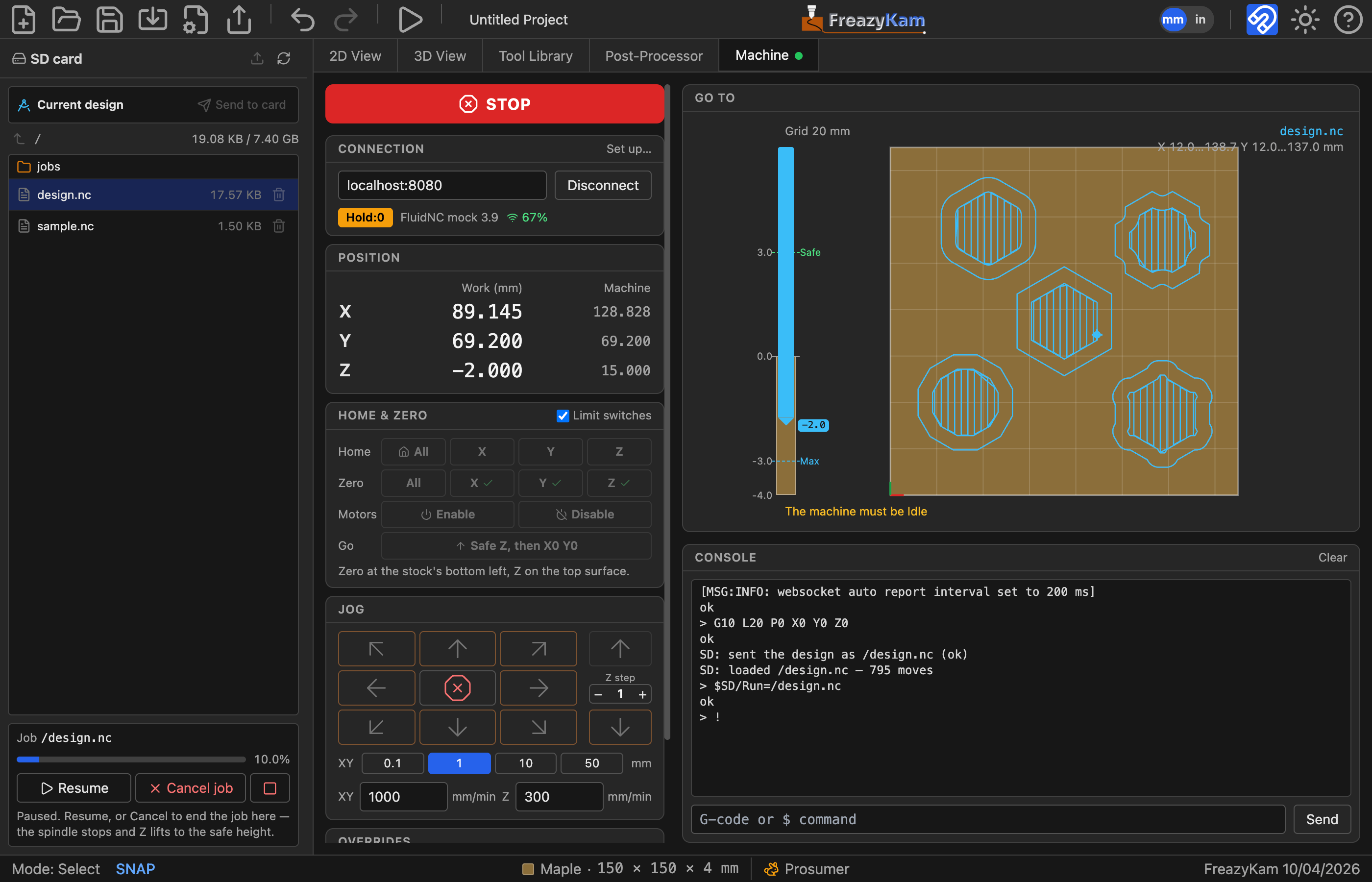
I have also added new Z height visualizer to the machines tab so as the job cuts you can see how the tool is moving in Z. It also gives a quick sanity check that the safe heights and stock thickness is correct for the job. Here is a screen shot. you can see the blue tool half buried in the stock as it is cutting. followed by the new tool paths panel.
I was thinking out loud, I think it would be used so that you don’t move parts to a clamp area. I did find your quick start and I like it.
Sorry for wasted post tried to update the link at top of thread by replying to that post but reply went to the end and first post is tool old to edit.
Here is the link to the new site FreazyKam
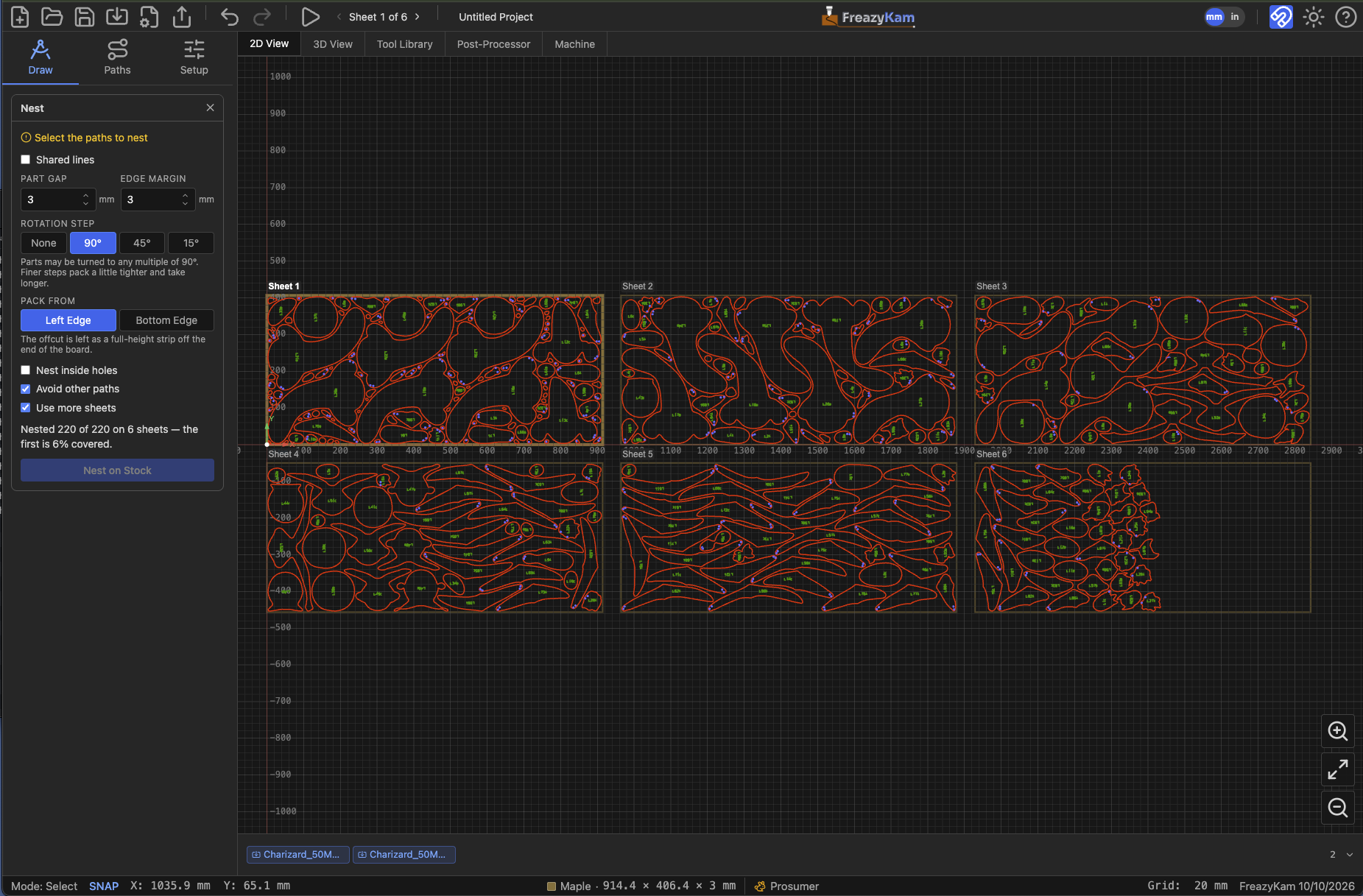
I used your 3D2CNC output (347 parts) to test my nesting and import code as I had not tried to work on hundreds of parts at a time. I added multi sheet support so that you can import your output parts and then set the sheet size you want to use and then nest all the parts. the nesting will create sheets as needed and on export a separate G-code file is saved for each sheet. I was also dropping groups, layers, blocks and colors on import. I now keep that info as i saw you had correctly grouped the outlines, holes and labels into their own layers. I now use that info when selecting the whole set of parts so that I can apply a profile operation to just the outlines, a center line carve with a v-bit to the labels and a drill operation to the holes. Here is a screen shot of the packed parts on multiple small sheets with your layer colors preserved. This reduces the sheet count from 10 to 6. Thanks for sharing looking forward to seeing how it evolves.
Glad others are finding it useful! I’m working on some better nesting now. I am half in the mind that nesting should be its own tool so that it can be done really well and not overcomplicate this tool, but this should also export something a little closer to being ready for CAM than what it gives currently.