Bought used and need some advice

I bought a 4x8 Lowrider V4 from a member here as he’s moving and can’t take it with him. I’m brand new to anything CNC/Wood Working or 3d for the matter.

I was able to get the machine up and running (original owner did most of the work but needed to remove it from the wood stand in order to transport it to my house) and move along X/Y/Z within FluidNC when pushing the buttons. It also seems to “Home” when hitting it.

My question is, how does the system know what size it is? For example 4x4 or 4x8? I don’t see an option within FluidNC to test/run the whole board (4/8 in this case) and how do zero?? (not sure if I’m asking this correctly) the Z using the included tool

The seller stated “Powers on, connects, jogs all axes correctly Was cutting test files successfully Final strut plates still need to be cut and installed Needs tramming after final assembly”

I was reading over the how to here and get lost on a few part such as making the “Strut Plates” and the “Belt Calibration” area and the things below it.

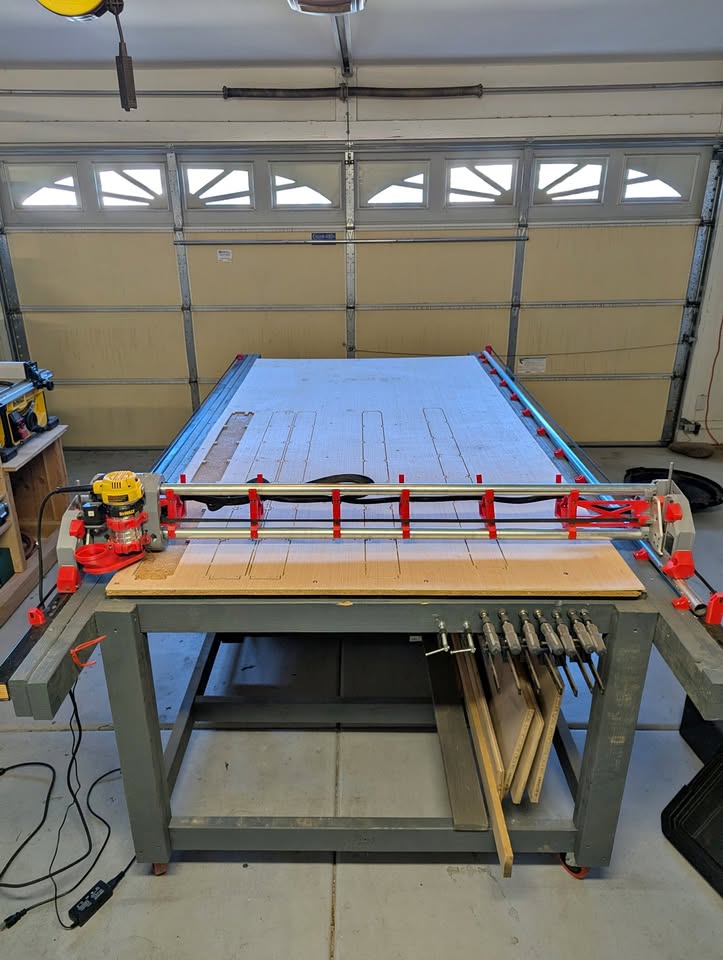
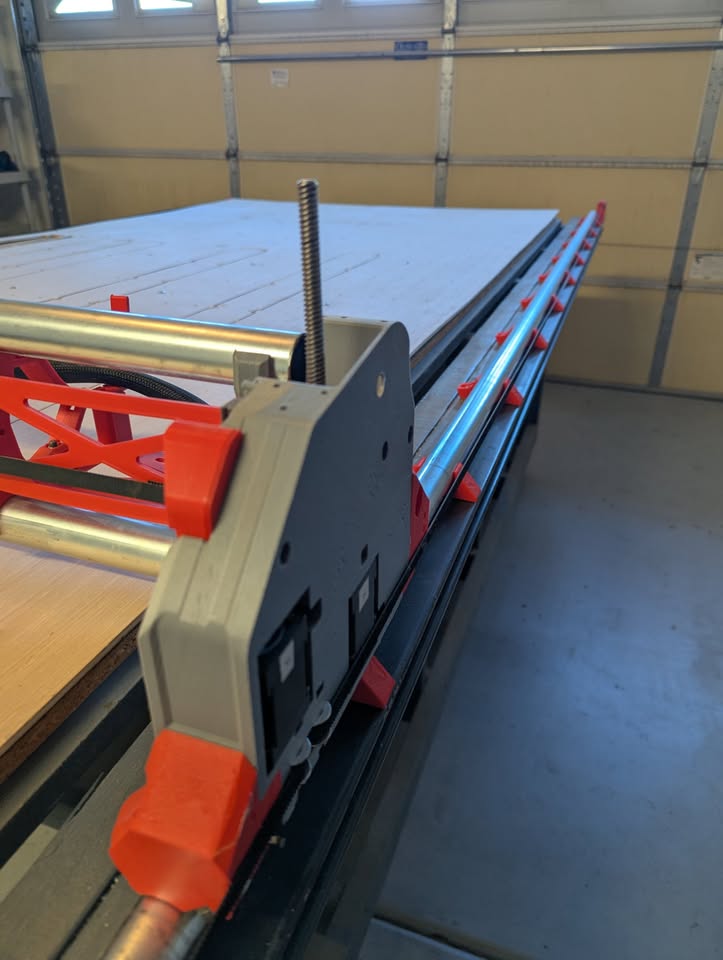
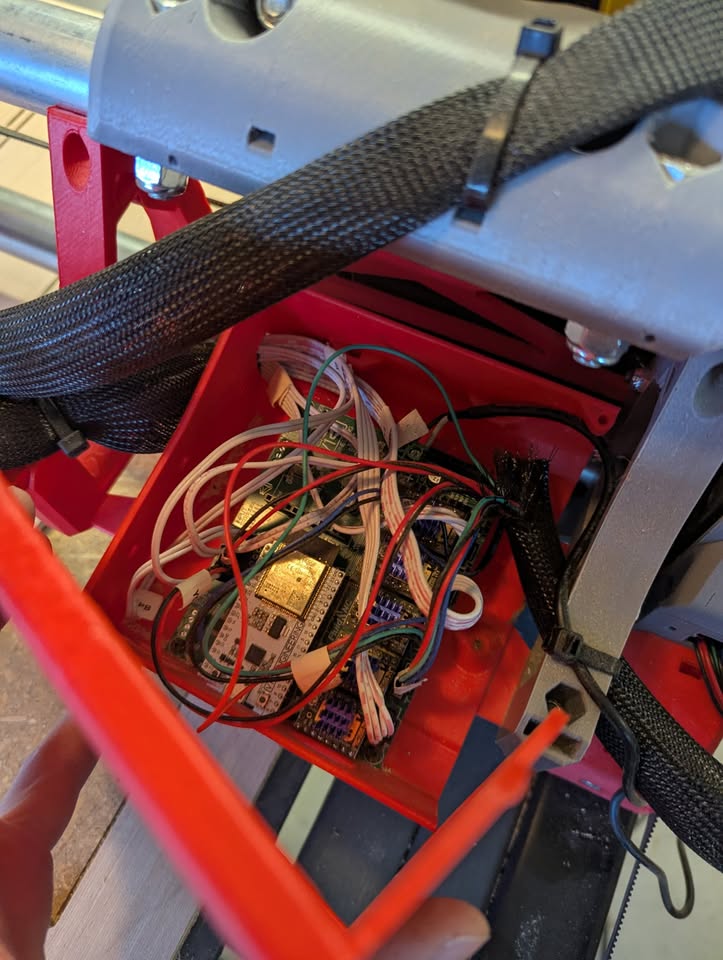
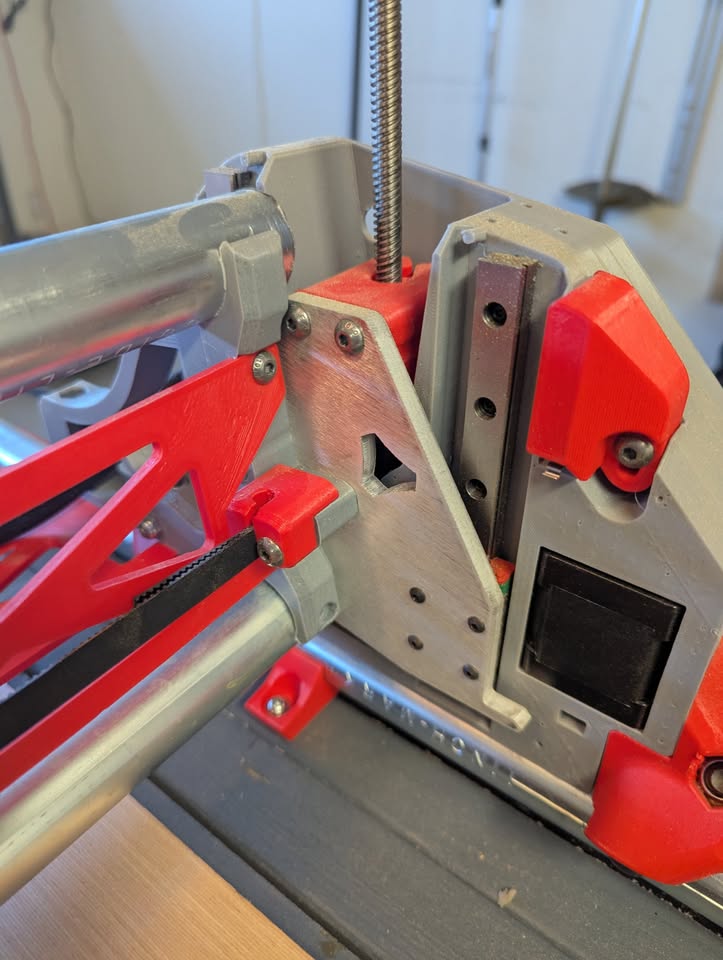
Here’s some pictures of it:
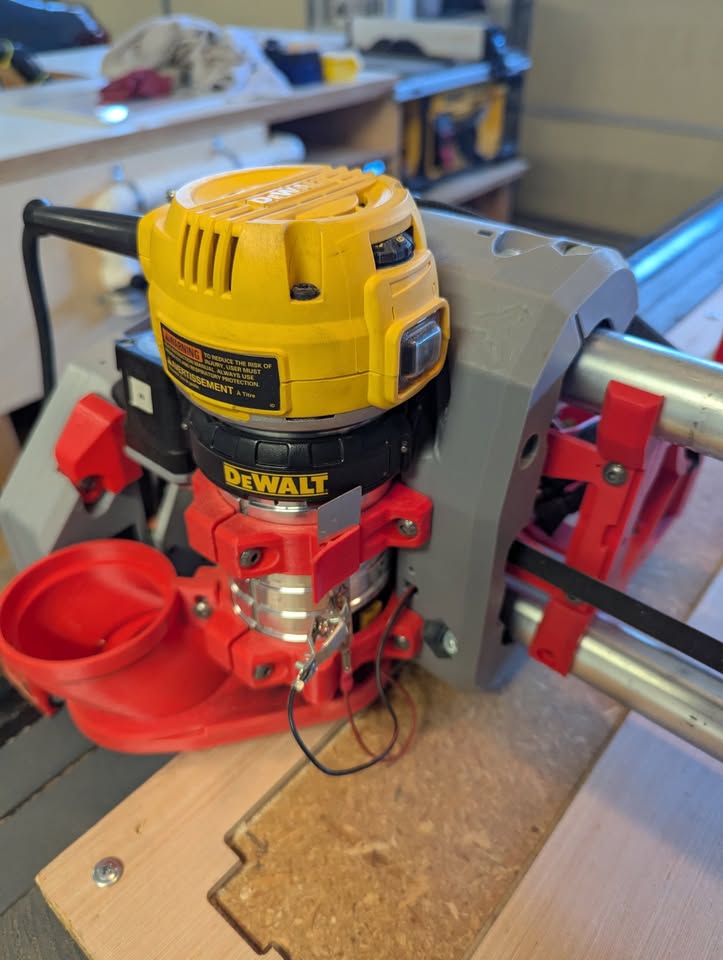
it seems the original owner started to make the struts but ran into an issue and stopped there.

Machine Details

  • Model: LowRider v4
  • Working area: ~4’×8’
  • Controller: Original Jackpot (fully wired and functional)
  • Motion: Belt-driven X/Y, leadscrew Z
  • Router: DeWalt trim router
  • Frame: Steel EMT Conduit + printed LR4 parts
  • Table: Dedicated CNC table included

Any ideas on how I should proceed?
1 Like

That is defined in the yaml configuration file on the Jackpot board.

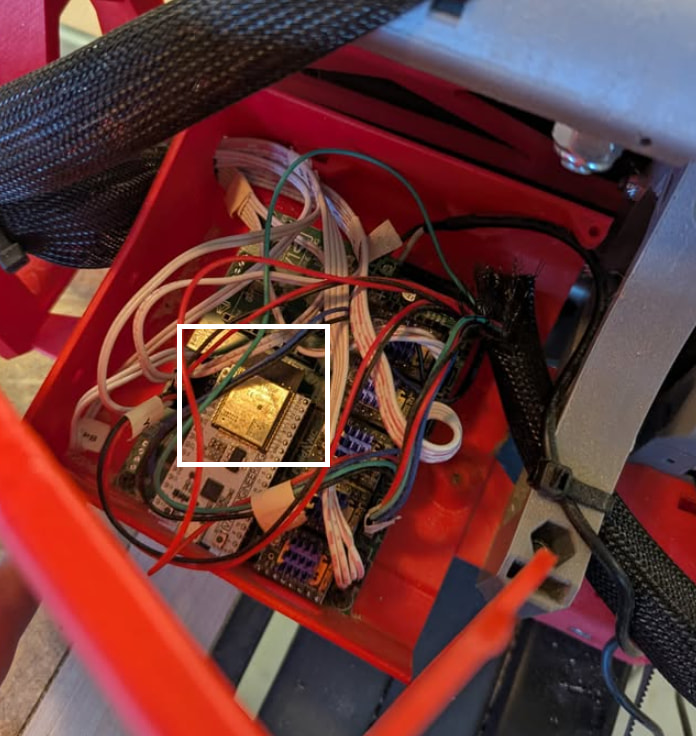
One recommendation would be to clean up the wiring around the board. If at all possible have the wires routed around the outside of the board and not over the ESP board since I’ve seen it suggested here in the past. It will help with the WiFi signal.

1 Like

It doesn’t actually need to know. You just need to not have it move beyond its work area. There are configuration settings where you can tell it max coordinates. That’s only used if soft limits (prevent traveling outside work area) or hard limits (error if attempting to go outside work area) are setup. I would avoid that for now because there are implications to those.

What you are referring to is probing. Here are some basics:

  • When you startup your machine, you should “home” the machine. This is going to find and set X/Y/Z zero in machine coordinates (there are also work coordinates which is just an offset of machine coordinates). This is how the machine knows where it is. This will also use the configured pulloff values so it re-squares Y and re-levels Z every time you use it.
  • When you “zero” an axis, you’re telling it you want the current position to be the new zero. This is setting the “work coordinates” which is the context you run a job in. This is useful because when you design something to run, you’re not telling it to run in a specific position. You just want it to start in a certain position.
  • “Probing” is typically how you set zero for the Z axis. You attach the clip (or use the magnet) to the endmill and hold the probe plate below it. During the probing process, it will slowly lower until the endmill touches the plate which sets Z0. This is usually done to the top of the material you are cutting but can also be to the spoilboard.

The part I’m not sure about here is how long your strut plates need to be. Normally, you use the values that came out of the calculator but we don’t seem to know the exact values used. It sounds like you can measure it but I’ll leave that to someone else.


This is a Jackpot controller. I’ll note that you’ll want to cleanup the wiring so that there are no wires over the area in the rectangle. Otherwise, you can run into wireless signal issues.

How are you moving things around? Typically, you would use the FluidNC WebUI. Can you post a screenshot?

This is absolutely true, you need to know the extent of your machine and not run outside of it!

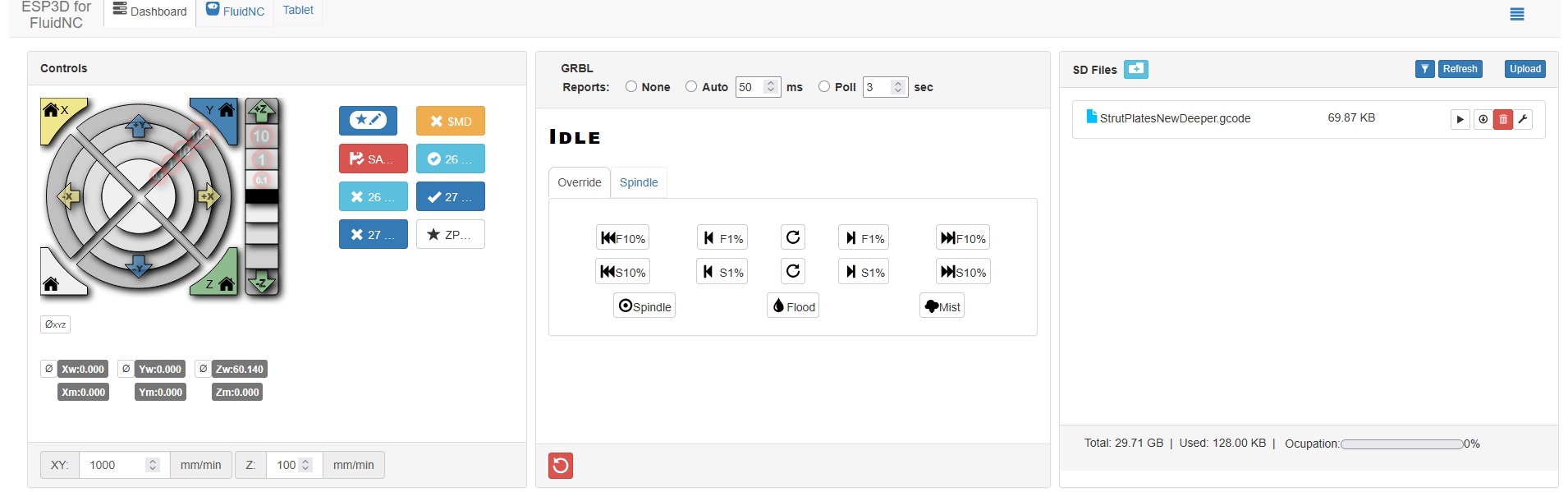
I’m using the FluidNC WebUI to move things around very slowly. Here’s a screenshot:

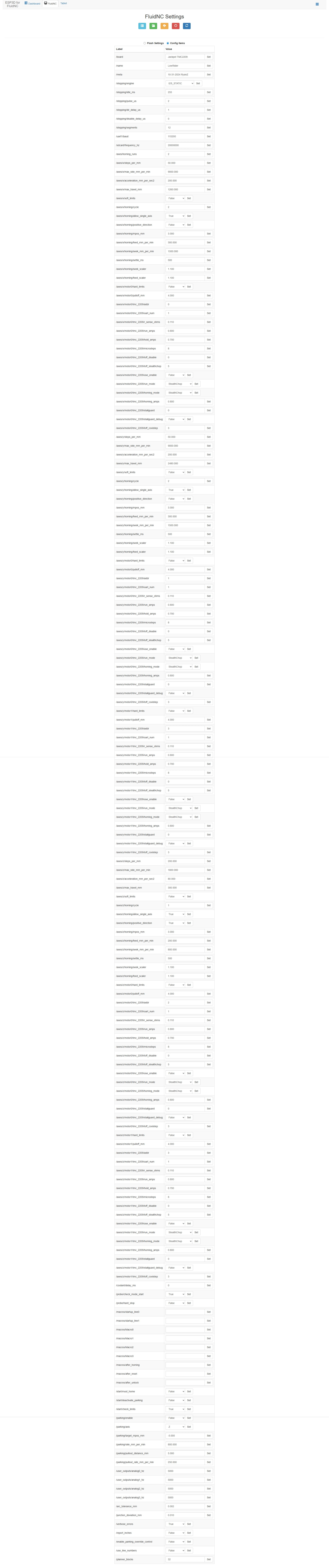
Here’s a copy of the “Config Items” within FluidNC if that helps at all:

I’ll get on cleaning up the wires for sure!

Yes, this is what I don’t understand how to do. From my reading here on the forums, it seems best to do this every time I start a new protect and/or if I’m swapping in/out a new bit? But how do I do this? I’m assuming this is done within FluidNC? If so, what do I hit to do this?

Typically, this is included in the gcode. It is a G38.2 command.

Estlcam is the most popular CAM software around here. The milling basics describes the configuration.

This is the starting code from there:

G21
G90
G94
G92 X0 Y0
M0 (MSG Attach probe)
G38.2 Z-110 F200 P0.5 (probe down set thickness )
G1 Z10 F900
M0 (MSG Remove probe)
M62 P1 (If used start spindle pin27 )

So, that M0 (MSG Attach probe) pauses so you can connect the probe. Then the G38.2 does the probing and sets Z0. Then it prompts again to remove the probe.

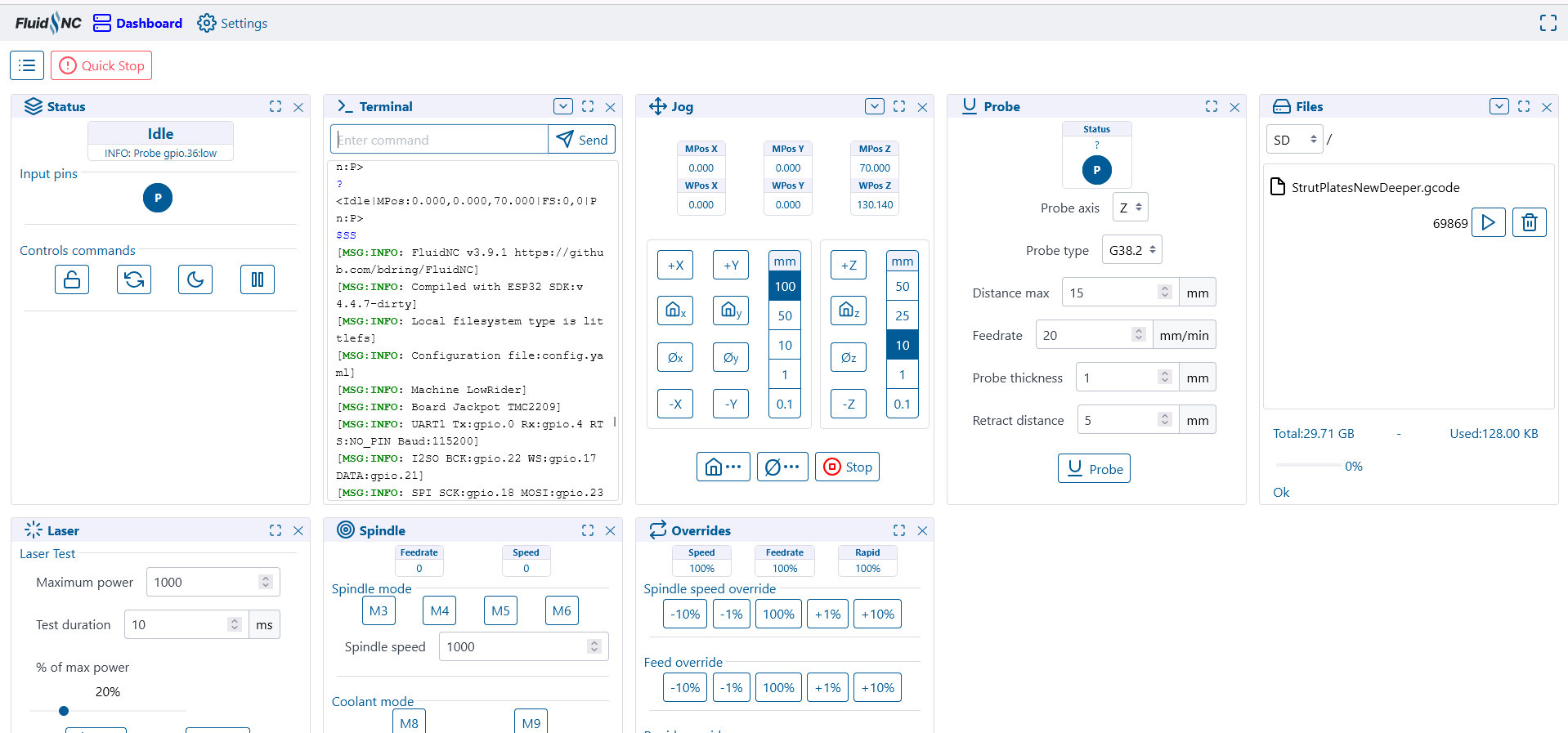
You are using WebUI v2. I know it has an option in there but I haven’t used v2 in a long time. You can do it in WebUI v3 as well but I never use it since I always just include it in the gcode.

You could consider updating the WebUI. We should also see what version of FluidNC is installed. You can get those details by running $SS in the terminal.

Here’s the link to download the newest version of WebUI V3:

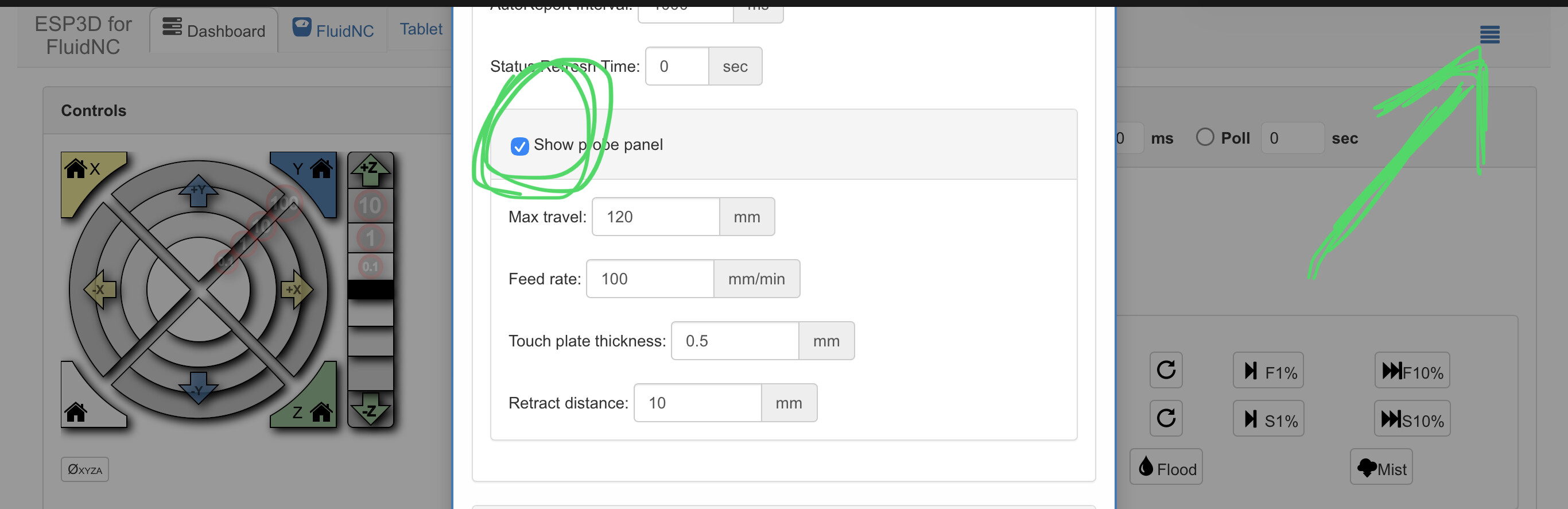
Click the menu, preferences, Show Probe panel.

Thank you for this. Upon reading, I only needed to do the index.html.gz file, correct? I uploaded it via the old FluidNC dashboard and upon refreshing the browser, I can see it changed. Upon doing this, I noticed my Terminal commands keep showing

“<Idle|MPos:0.000,0.000,70.000|FS:0,0|Pn:P>

?
<Idle|MPos:0.000,0.000,70.000|FS:0,0|Pn:P|WCO:0.000,0.000,-60.140>
?
<Idle|MPos:0.000,0.000,70.000|FS:0,0|Pn:P|Ov:100,100,100>
?
<Idle|MPos:0.000,0.000,70.000|FS:0,0|Pn:P>
?
<Idle|MPos:0.000,0.000,70.000|FS:0,0|Pn:P>
?
<Idle|MPos:0.000,0.000,70.000|FS:0,0|Pn:P>
?

<Idle|MPos:0.000,0.000,70.000|FS:0,0|Pn:P>


I'm assuming this is normal? Just letting me know the system is idle and at what location? 
1 Like

Thank you for this! I looked at this before I updated to V3 of the Web and it indeed was there. I did not test it as I was upgrading to the new web interface.

I believe I updated to V3, Thank you!

This it? FluidNC v3.9.1

v3.9.1 should be ok. If you wanted, it could be updated to v3.9.9. There is a new v4.0 out but we’re waiting for that to stabilize a bit.

Does he need 3.9.9 for the newest version of the webui V3?

I don’t think so?

No, I’m on V3 of the webui (now) but V3.9.1 of the software I believe. Moving in the right direction! I’ll play with the probe later tonight after the Gym. So much to learn and understand.

2 Likes

You probably want to upload this preferences.json to Flash. It includes some default configuration for the WebUI, including appropriate defaults for the probe panel.

1 Like

Done, Thank you!!